 Soreno
· Since Soreno 1.0.0
Pull requests and merge requests, without leaving Soreno
Soreno 1.0.0 shows GitHub pull requests and GitLab merge requests in the Git panel: the list, the checks, a diff computed locally, then the merge, right next to your agents.
An agent finished its branch, CI is running, a teammate reviewed it. Until now, what came next happened in the browser. Since Soreno 1.0.0, the Git panel has a Pull requests view, or Merge requests for GitLab: you follow and merge your requests next to the agent that wrote them.
Every request in the repository, yours first
The view lists the repository’s requests, filtered as Open, Mine, Review requested or Closed / merged, with a search. Each row shows its branches, CI status, review and conflicts. The one for your current branch comes first, marked Current branch.
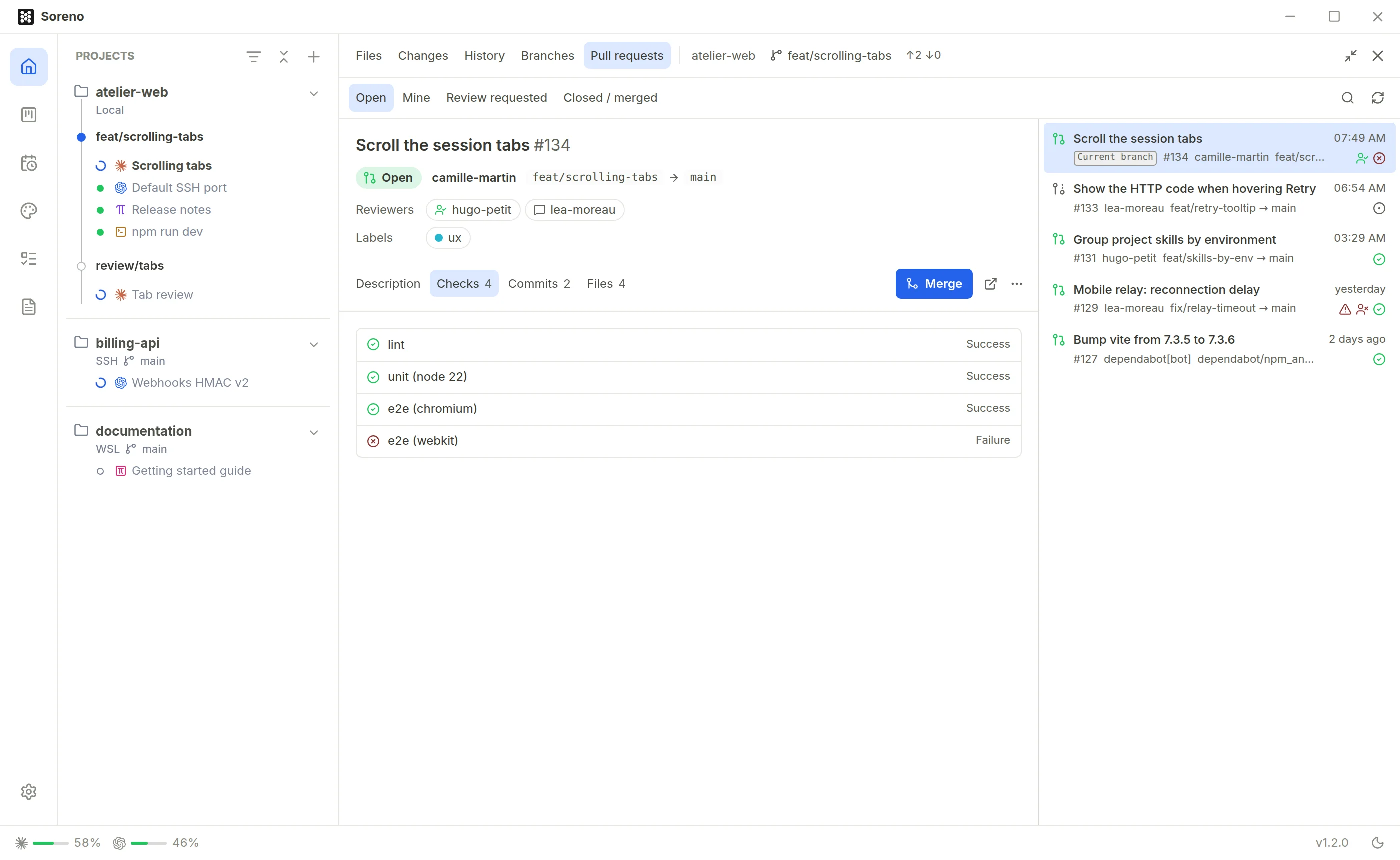
The details bring together the Markdown description, the checks, the commits and the files. A failing check stands out right away, and clicking its name opens it in the browser.
The diff, computed locally
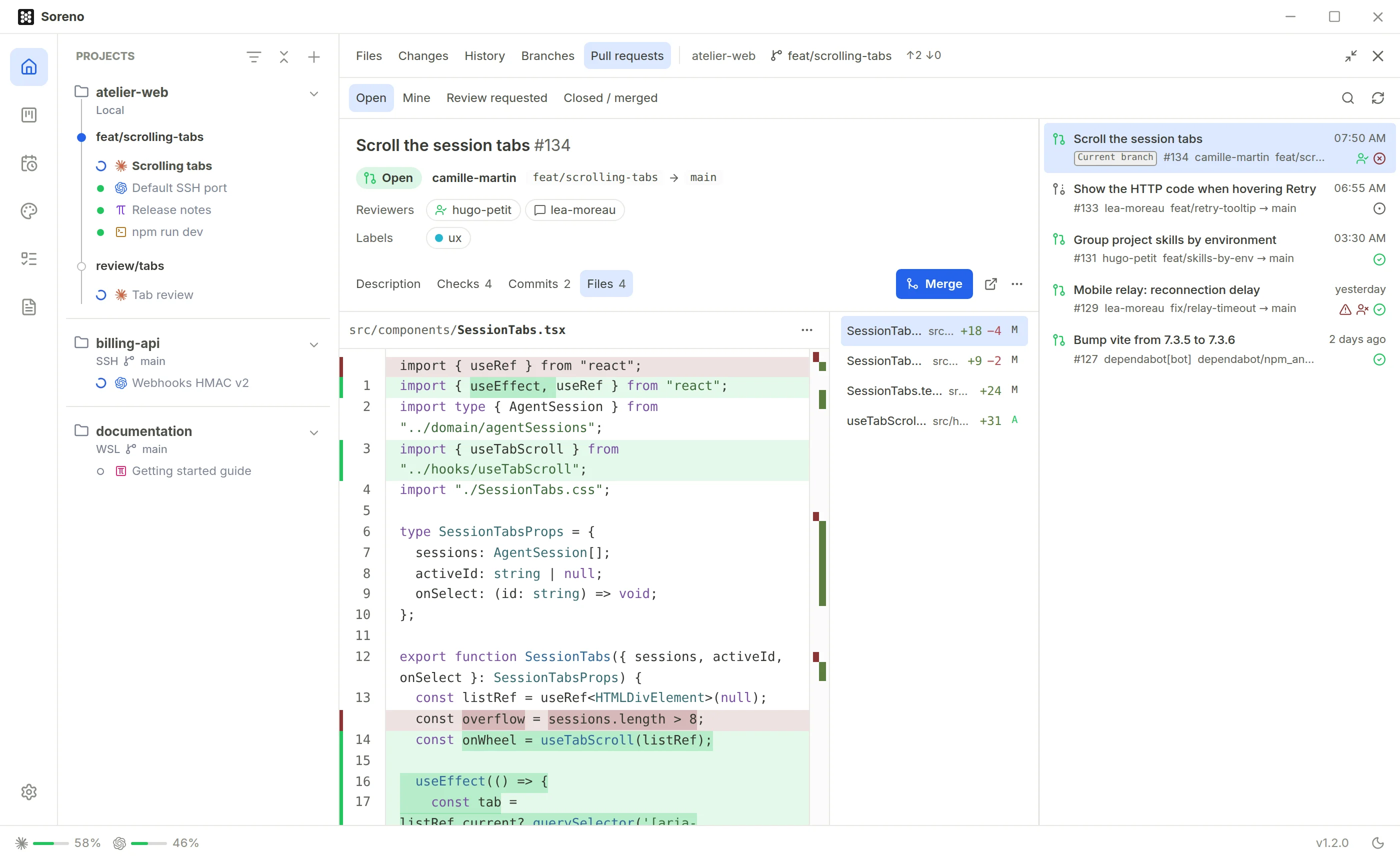
In the Files tab, the diff doesn’t come from GitHub or GitLab: Soreno uses Git to fetch the request’s commits the repository lacks, on your machine or on the SSH server, and compares from the point where the branch started. Your branches and files stay put. The diff shows just like the one for your own changes. Expand the panel, or press Ctrl+Shift+M (Cmd+Shift+M on macOS): the diff, the list of changed files and the pull requests sit side by side.
Merge with your eyes open
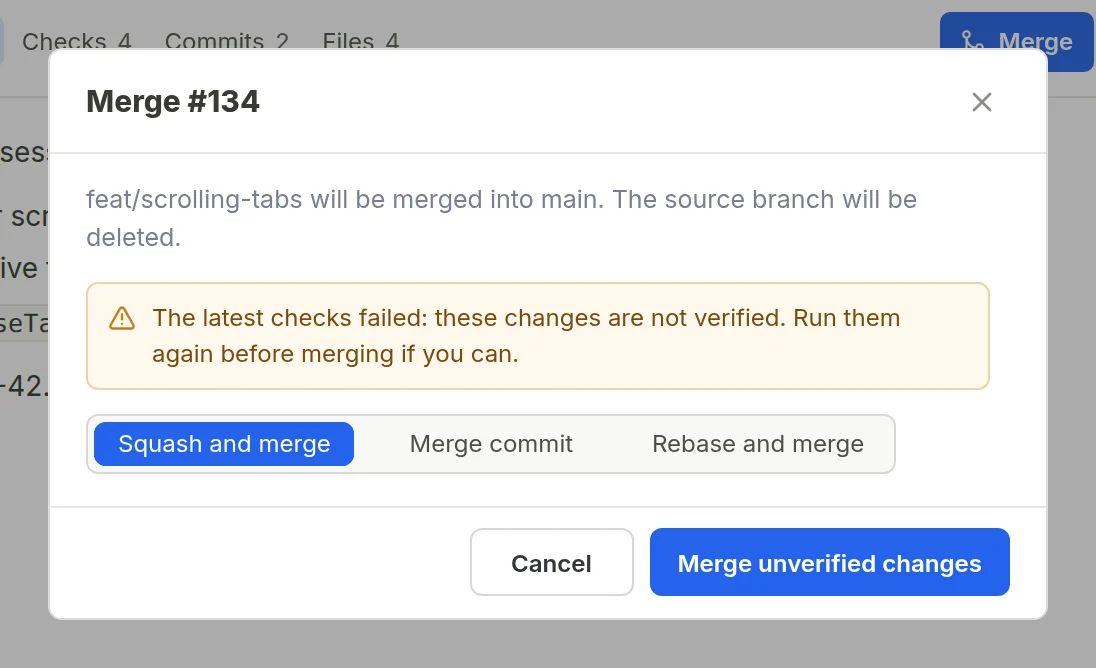
Merge only offers the methods the repository allows: merge commit, squash or rebase. If the latest checks failed or are still running, Soreno says so, and the button becomes Merge unverified changes. A blocked request, a draft, in conflict or missing required approvals, keeps Merge greyed out, with the reason on hover.
The … menu does the rest: Check out in a new worktree, to try the branch next to your own work, Check out in this worktree, or Close. And a draft is marked as ready in one click.
Your CLIs, no token
Soreno goes through gh and glab, installed where the project lives: locally, in WSL or on your SSH server. It stores no token: if the CLI isn’t signed in, Sign in to GitHub, or Sign in to GitLab, opens a terminal to authenticate. It works with github.com and gitlab.com, on the upstream remote, or origin if there is none.
All the details are in the Pull and merge requests page of the documentation.
