 Soreno
Get started
First steps with Soreno
Install Soreno, add a project, launch a first agent and follow its state: everything you need to get going.
Install Soreno
Soreno runs on macOS (Apple Silicon and Intel), Windows and Linux (x86_64). It launches the CLIs you already have: Claude Code, Codex, Pi or OMP must be installed where the project lives, on your machine, in WSL or on the server.
- macOS: the app is signed and notarized by Apple;
- Windows: the installer isn’t signed yet, so Windows may warn about an unknown publisher;
- Linux: the AppImage updates itself; the
.debpackage, by installing the next one.
Open the Agents space
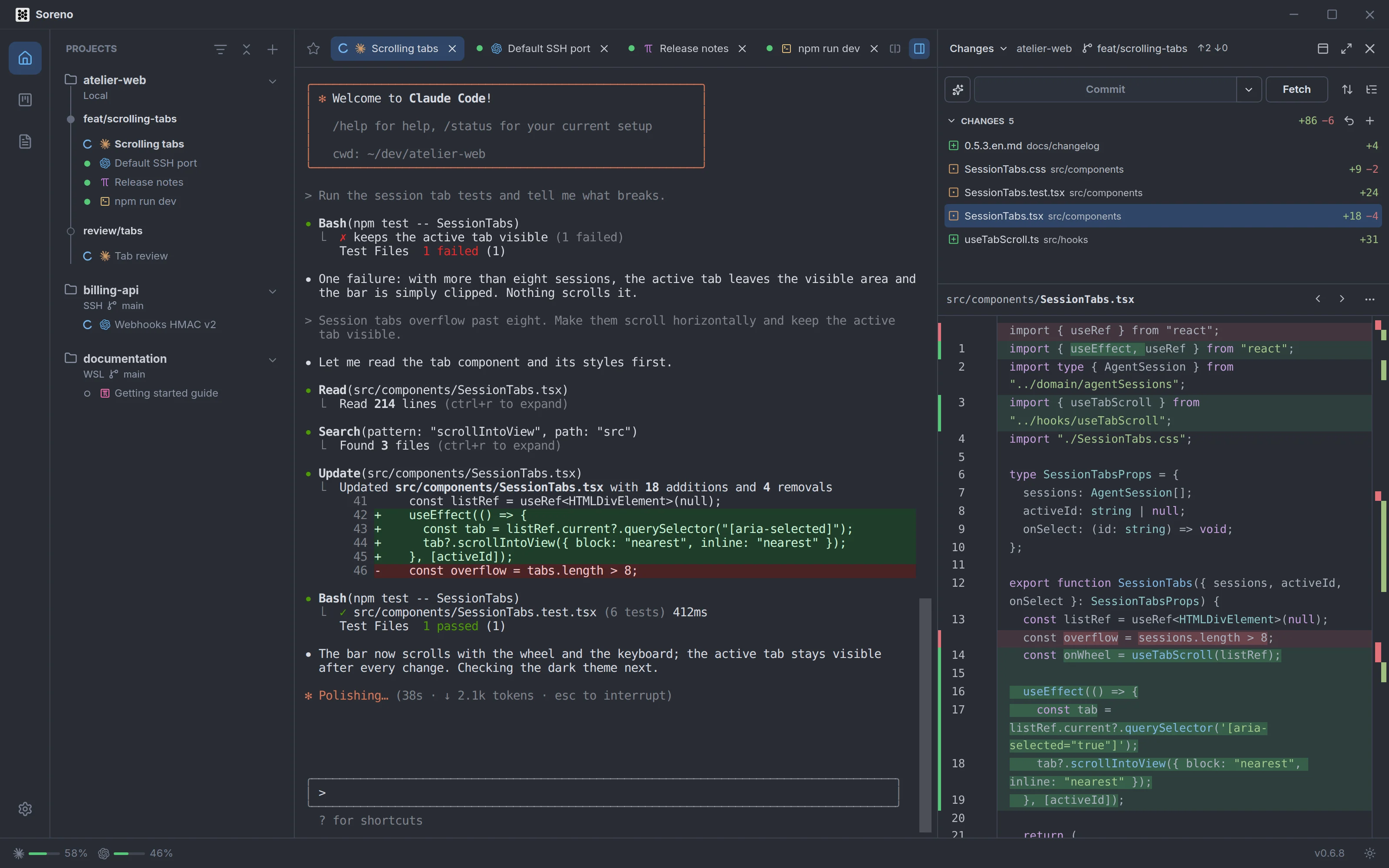
Your agents live in the Agents space: the house icon in the activity bar on the left.
Add a project
A project is a code folder. Click the + at the top of the project column, then Add project. Clone repository, in the same menu, starts from a Git repository instead of an existing folder.
- Display name: optional, Soreno uses the folder name otherwise;
- Environment: Local, WSL with its distribution, or SSH;
- the folder: Choose a folder…, on your machine, in WSL or on the server.
Over SSH, only Host or OpenSSH alias is required; User, Port and Private key are optional. Choose the private key, not its .pub file. The form doesn’t ask for a passphrase: unlock a protected key with ssh-add. On first connection, Soreno has you check the server’s fingerprint: Trust and continue.
Save: the project joins the left column, with its environment and branch.
Launch a session
The + at the end of the project’s tabs, or the New session button, offers Pi, OMP, Codex, Claude Code, Chat (OMP) and Terminal. Each agent starts in a real terminal, with the CLI as you configured it; Chat (OMP) opens OMP in a conversation view.
If the CLI is missing, Soreno says so rather than opening an empty terminal: “Claude Code is not installed”, with where it looked. Installation guide opens the CLI vendor’s documentation; once it’s installed, click Retry.
Follow your agents
Next to each session, in the project column and in the tabs:
- the blue spinner: the agent is working;
- the red dot: it’s waiting for your reply, to a question or for a permission;
- the orange dot: it finished its turn while you were looking elsewhere;
- the green dot: the session is running, with nothing new.
Ctrl+Shift+U (Cmd+Shift+U on macOS) opens the next session waiting for you.
Arrange your tabs
Drag a tab to the left or right half of the terminal to follow two agents side by side; the tab’s context menu also offers Move to left pane or right pane.
Careful: Close tab deletes an ordinary session. To find it again later, first pick Add to favorites in the context menu: a favorite session reopens from the project’s Favorites.
Shortcuts worth knowing
- Ctrl+Tab and Ctrl+Shift+Tab: next or previous session in the project;
- Ctrl+P (Cmd+P): open a project file;
- Ctrl+Shift+F (Cmd+Shift+F): search the project;
- Ctrl+B (Cmd+B): show or hide the sidebar;
- Ctrl+Alt+B (Cmd+Option+B): show or hide the Git panel.
Every shortcut is listed in Settings, the gear at the bottom of the activity bar, under Shortcuts.