 Soreno
Kanban
Connect Linear to the Kanban
Show a Linear team’s issues on Soreno’s Kanban, edit them from Soreno and start your agents on them, with a personal API key.
Connect Linear
Without Linear, the Kanban stays fully local. To add your team’s issues:
- open the Kanban and click Connect Linear, at the top of the board;
- Create an API key opens the Linear page where you generate a personal API key;
- paste it into Linear API key, then Connect.
Soreno checks the key with Linear before storing it in the system keychain. To edit your issues from Soreno, the key needs the Write permission; without it, Linear rejects the changes.
Connecting only works with an API key.
All, Local or Linear
Once connected, the team’s issues join the same columns as your local issues, marked Linear. The All, Local, Linear filter picks what the board shows, and Linear team the team on display, among all the teams your key can read.
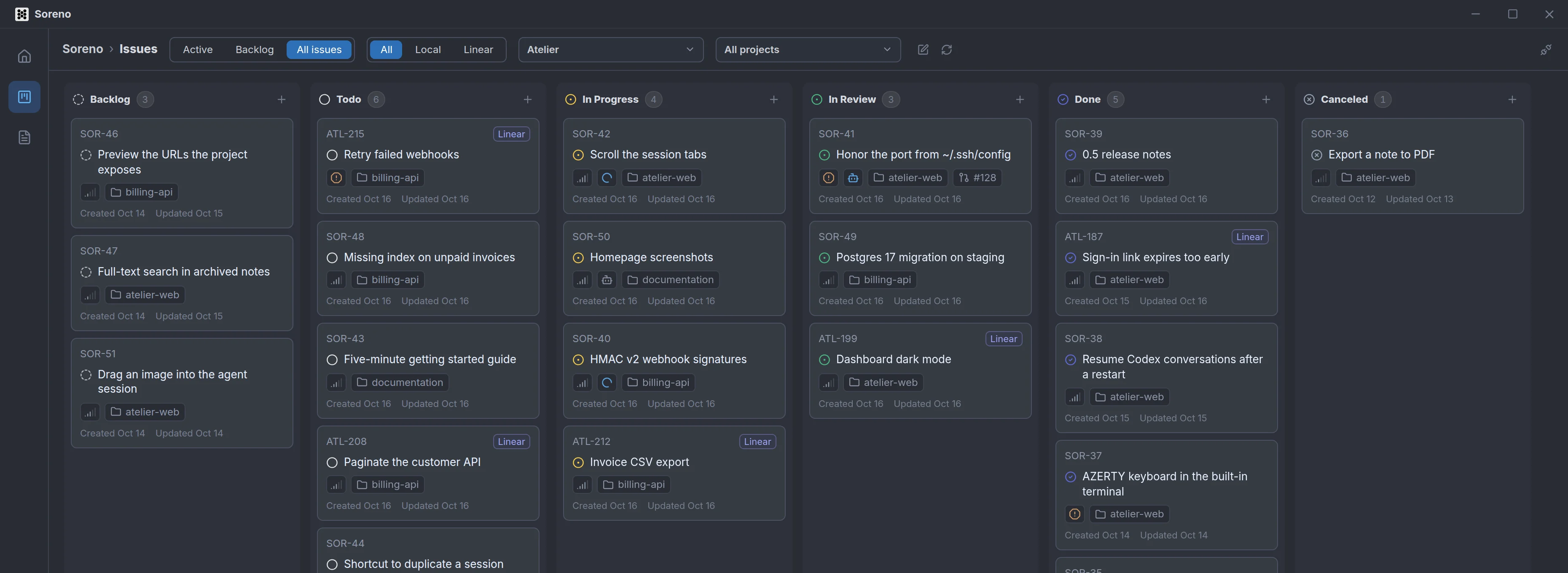
Each Linear state goes into the column of its type. A started state whose name contains “review” or “revue” goes into In Review, the others into In Progress. For a large team, Soreno only shows the most recently updated Linear issues and tells you so.
In New issue, Destination picks where the issue is created: Local or your Linear team. With the Local or Linear filter, the destination follows the filter; with All, Soreno reuses the last one you chose.
What stays in sync
What you change in Soreno goes straight to Linear:
- the status, by dragging the card into a column;
- the title, description, priority and labels;
- comments, added or deleted;
- sub-issues you create and issues you delete.
The other way, Soreno reloads the Linear issues every five minutes while the board is on screen, when you come back to the window, and when you click Refresh. Open in Linear, at the top of an issue, opens it in Linear.
An agent started on a Linear issue posts its summary there as a comment and moves it to review, provided the team has a review state named as above.
Link a Soreno project to a Linear project
For an agent to start in the right place, link your projects: right-click a project in the project list, Edit project, then choose its Linear project. The field shows up once Linear is connected.
Kanban issues of that Linear project then belong to that Soreno project: dragged into In Progress, they offer to start the agent in a worktree of that project. An agent working on a Linear issue also creates in Linear the issues you ask it for.
Send a local issue to Linear
In a local issue, Send to Linear moves it to the Linear team on display. It gets a new identifier there, its comments are copied into the description, then the local issue is deleted. A linked agent session is kept and follows the issue to Linear.
An issue with sub-issues or a parent issue cannot be sent to Linear.
Disconnect Linear
Click Disconnect Linear, the icon at the right of the board’s header, then Disconnect. Your API key is removed from this computer’s keychain; you will need to enter it again to reconnect. Local issues, agent sessions and project links stay in Soreno.