 Soreno
Sessions
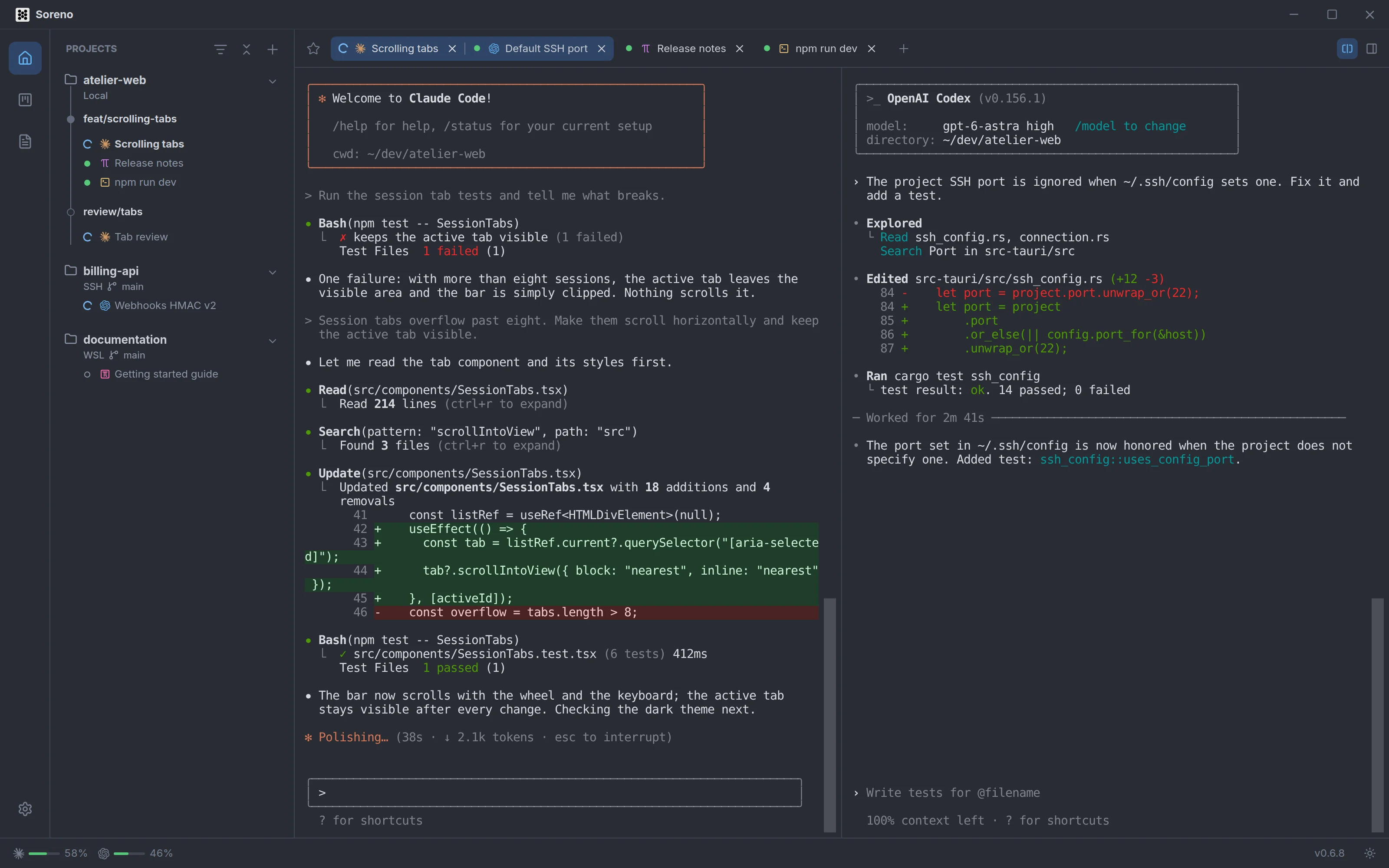
Tabs, split view and favorites
Open, arrange and close session tabs, follow two agents side by side, keep sessions as favorites and resume a conversation after a restart.
Open and close a tab
Each session in a project has its tab, with its CLI’s icon and its name. The + at the end of the tabs, New session, adds one. Clicking the tab of a stopped session launches it again; in the project column, the list of sessions under a project shows them without launching them.
The tab’s cross, or a middle click, closes the tab: Soreno stops the session if needed, then deletes it, without asking. Project files are kept. A favorite session, or one linked to a Kanban issue, is only closed: it reopens from Favorites or from its issue.
Delete session, in the tab’s context menu, asks for confirmation. It isn’t available for a running or pinned session: stop or unpin it first.
Arrange your tabs
Drag a tab to move it, or use Move left and Move right in its context menu (right-click).
- Pin tab: the tab moves to the front, reduced to its CLI’s icon, with no close button; Unpin tab makes it normal again;
- Rename session: this name replaces the one the agent sets automatically; leave it empty to use the automatic name again. The agent keeps running.
A tab’s tooltip shows the session’s name, its CLI and its state.
Two agents side by side
The Split terminal button, on the right of the tab bar, offers the same agents as New session: the one you pick starts in a second pane, next to the session on screen.
To bring two existing sessions together, drag a tab to the left or right half of the terminal, or pick Move to left pane or Move to right pane in its context menu. Both panes then share one tab; each keeps its own state indicator and menu.
Detach secondary pane, the same button once the terminal is split or the pane’s menu, separates the two sessions: each gets its tab back.
Keep a session as a favorite
Add to favorites, in a tab’s context menu, protects a session: closing it no longer deletes it. The Favorites star, at the start of the project’s tabs, lists its favorite sessions, open or closed.
- clicking a favorite shows it, or reopens it and resumes its conversation;
- the pencil renames it;
- the cross removes it from favorites; if it was closed, it comes back to the tabs.
Resume a conversation
Quitting Soreno stops local and WSL agents; over SSH, terminal sessions keep running on the server, Chat (OMP) only on a Linux server. On the next launch, Soreno brings back your tabs, their order, their pins and their names, but starts nothing on its own: click a session’s tab to resume it.
- Pi and OMP: Soreno links each session to its exact conversation and reopens it on click;
- Claude Code and Codex: the same resume, through the hooks Soreno declares for that launch. Codex asks you to approve them first: do it in its startup review or with
/hooks, then relaunch the session; - an older session with no linked conversation: choose the conversation once in the CLI’s selector;
- Terminal and commands Soreno doesn’t integrate: no resume, the CLI launches normally.
A session created with + always starts a new conversation. Restart, in the context menu, clears the displayed terminal, not the files, and resumes the linked conversation when the CLI supports it. The terminal’s content isn’t a backup: the history is the CLI’s own.
Paste a screenshot, drop files
Ctrl+V (Cmd+V on macOS) pastes text or an image into the terminal: a copied screenshot lands in the agent’s conversation. Over SSH, Soreno sends the image to the server and pastes its path.
Drag up to 16 files onto an active session’s terminal: Drop files into the conversation shows up, and Soreno types their paths into the input, without adding them to the project. Files are limited to 32 MiB each; over SSH, they’re copied to the server.