 Soreno
Chat (OMP)
Working with Chat (OMP)
Run OMP in a conversation view, locally, in WSL or over SSH: read its tools, answer its questions, attach files and resume a conversation.
Start a conversation
In a project’s New session menu, choose Chat (OMP). OMP starts in the project folder, on your machine, in WSL or on the SSH server, without a terminal. It must be installed in that environment: Soreno does not install agents.
It is your own OMP: “OMP works in this project’s folder with your models and settings.” Its models, accounts and permissions come from its own configuration. When a newer version exists, the empty conversation says so, with Update OMP; once updated, See what’s new asks OMP for its changelog.
Under the input:
- Model: OMP’s model, with Search models by name;
- Reasoning: the level, from Off to Maximum depending on the model;
- Context: how full the context is, with the tokens this conversation used and its estimated cost on hover.
The model and reasoning level can be changed while OMP isn’t working.
Write to OMP
Enter sends, Shift+Enter starts a new line. The up arrow brings back your previous messages. Type @ to mention a project file, recent files first, and / for OMP’s commands and your skills.
You can write while OMP works: the input then offers to “Steer the current step…”. Sent messages wait their turn above the input, marked “Waiting for the current step”; Cancel this message removes them. To interrupt OMP, empty the input: the send button turns into Stop, or press Esc.
Attachments can be pasted, dropped on the conversation or picked with Attach files. Soreno inlines in the message images, if the chosen model reads them, and text files; an inlined text file opens in a preview with one click before sending.
- at most 16 attachments per message; a drop of more than 16 files at once is refused;
- text files up to 256 KiB, and 20 MiB in total per message;
- any other file, binary, too big or an image the model doesn’t read, is uploaded where OMP can read it, up to 32 MiB, and its path is inserted in the message;
- one exception: a screenshot pasted from the clipboard, with no file, is refused if the model doesn’t read images, with the message “this model does not read images”.
Read the conversation
Replies stream in as Markdown, Mermaid diagrams included. Each tool fits on one line with its status, Running, Done or Failed, and its duration: Read, Search, Edit, Command… One click expands it on the command’s output or the edit’s diff. OMP’s reasoning folds under Reasoning.
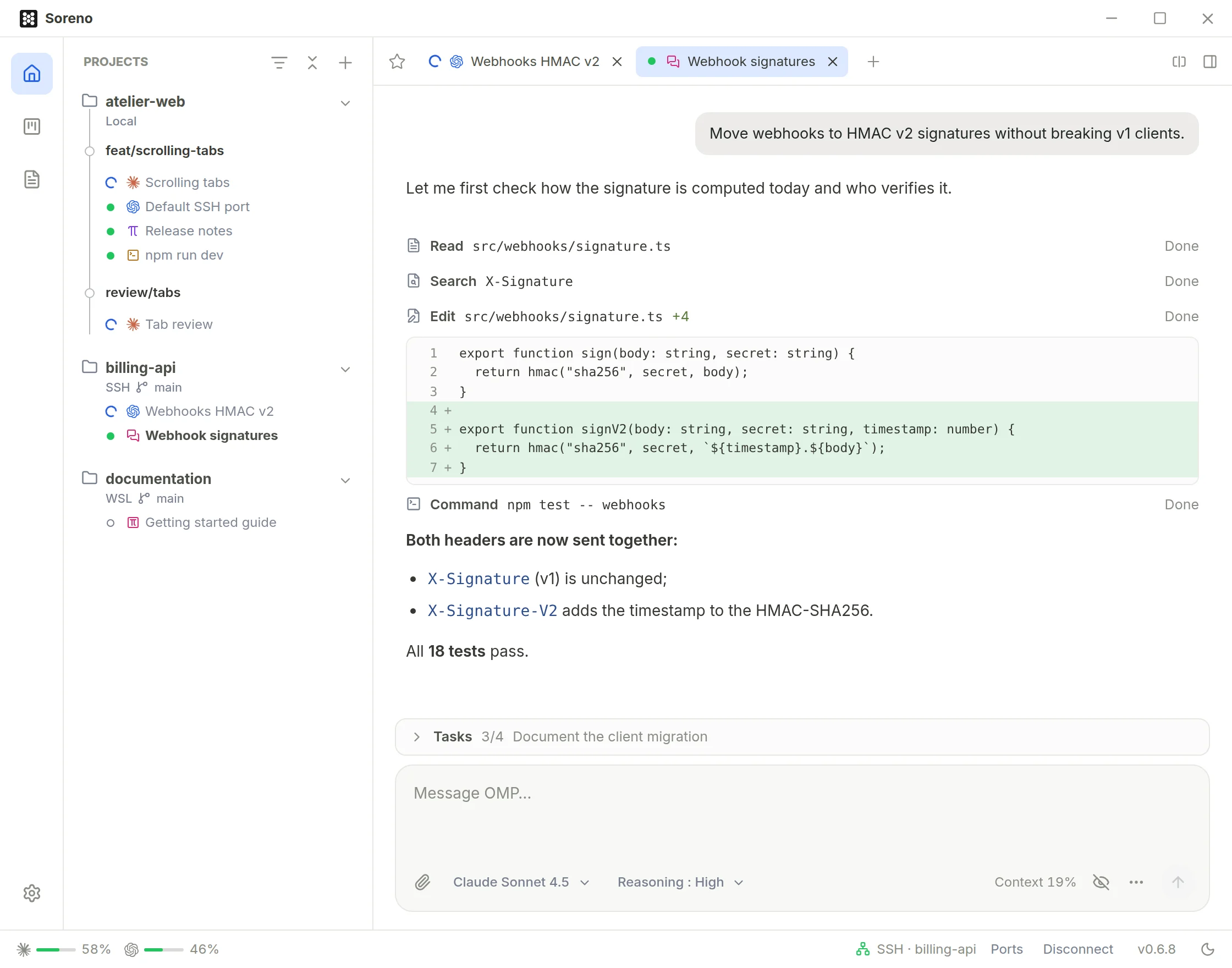
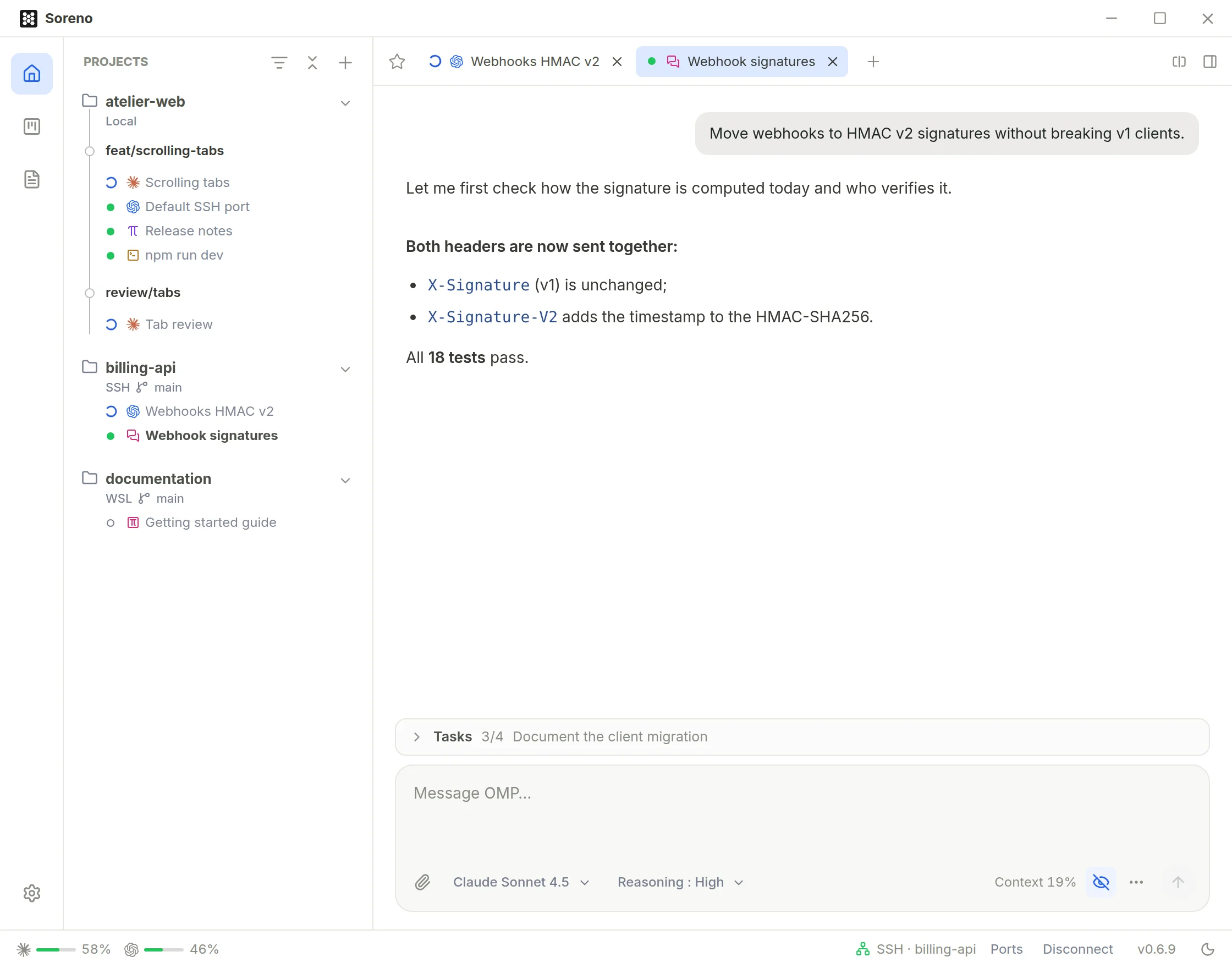
Only want the replies? The eye under the input, Hide tools and reasoning, keeps only your messages and OMP’s; subagents stay visible. The choice applies to every conversation and Soreno remembers it. Each message can be copied with its Copy button.
Permissions and questions
When OMP asks for a permission or a question, it shows above the input, and the session gets the red dot in the sidebar.
- a permission, “OMP wants to run this command” for instance: Allow with Enter, Deny with Esc;
- questions, under “OMP has questions”: the advised answer is marked “Recommended”; Other answer… lets you answer in your own words, then Answer;
- Dismiss, or Esc, sets the question aside without answering.
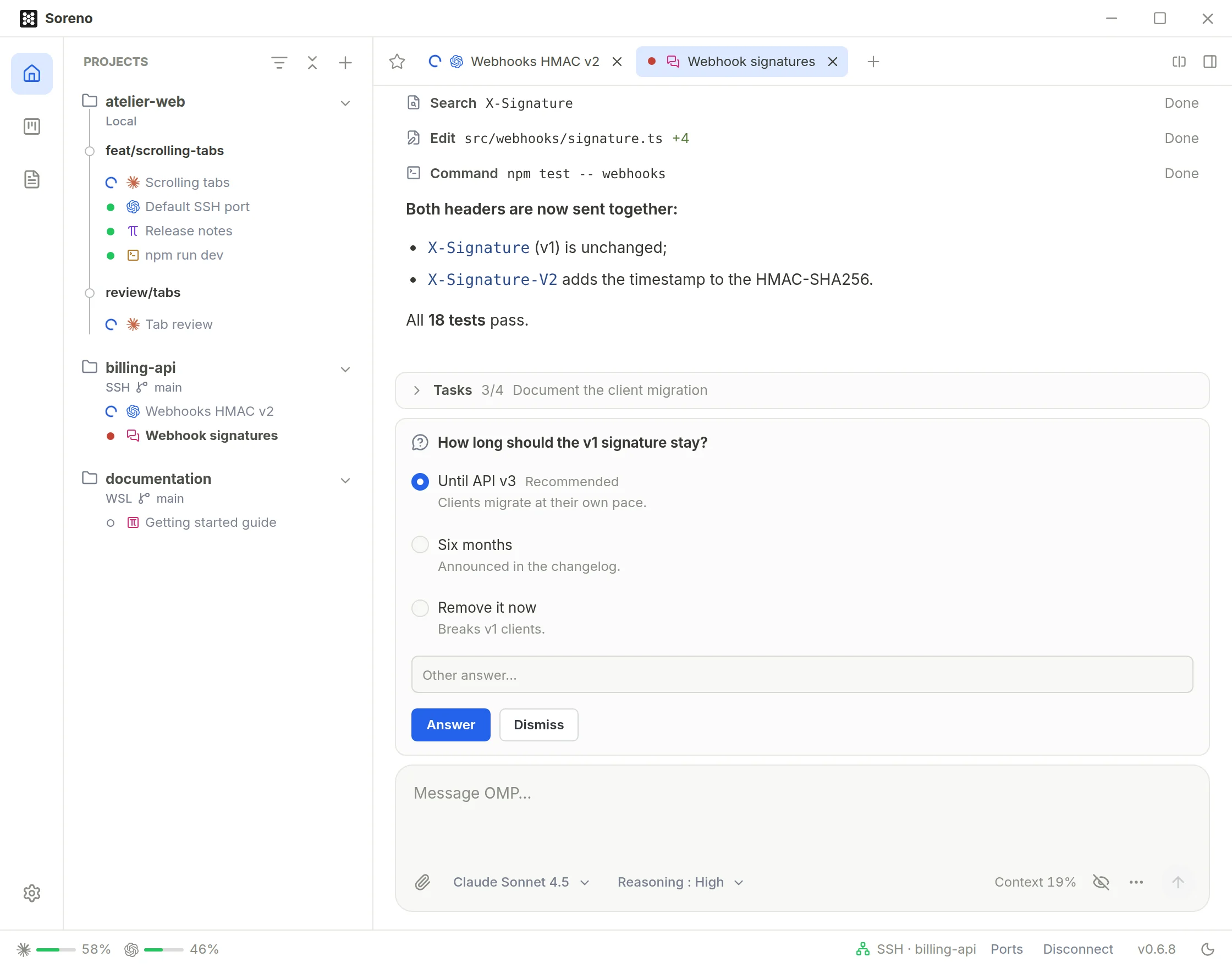
If more requests wait behind it, the current one says so: “1 more request”.
Tasks and subagents
When OMP plans its work, its task list shows above the input: Tasks, how many are done and the current task. One click opens it whole, each task with its status: To do, In progress, Done, Blocked or Dropped. Once everything is done, Hide the finished tasks puts it away.
When OMP starts subagents, those still working show in the same place, under Agents, with their count. Open the list to follow each one, or stop it with its Stop button. In the conversation, the Agents line keeps each one’s outcome: Done, Failed or Stopped, its number of tools, its tokens and its duration.
Resume a conversation
The … menu under the input, More actions, offers New conversation and Resume a conversation…. The latter lists the project’s earlier OMP conversations, most recent first, the open one marked “Current”. Search conversations filters the list; Load older conversations goes further back.
If OMP stops, the conversation says so, “This conversation is stopped.” for instance, with Resume the conversation to pick up where it left off.
A session that outlives Soreno over SSH
On a Linux server over SSH, if Soreno could install its small tool there, the conversation keeps running when you close Soreno or lose the connection. OMP carries on with its turn; reopen the session and you find it there, its questions still waiting.
Otherwise, the conversation ends with the connection: Soreno shows “The connection to the remote machine was lost.”