 Soreno
Sessions
One worktree per branch
Create a worktree to keep an agent’s work on its own branch, start sessions in it, merge it into the main branch and hand conflicts to an agent.
Why a worktree
Two agents in the same folder end up editing the same files, and Soreno doesn’t isolate them from each other. A worktree solves that: one more working copy, on its own branch, sharing the same repository. Soreno never creates one without you.
Create a worktree
In the project column, a project row’s +, Create worktree, opens the form. It shows the current branch and creates a new branch from its latest commit.
- Branch: the new branch’s name;
- Parent folder: by default, the one that holds the repository;
- Worktree folder: by default, the repository’s name followed by the branch’s. The full path shows below.
The button is greyed out for a disconnected SSH project. In the Git panel, the Branches view also offers Create worktree: next to the new branch field, or on an existing branch.
Work in a worktree
The worktree shows up under its project, named after its branch. It’s a project in its own right: click it, start agents in it as anywhere else, and its Git panel shows its own changes. Sessions in the same worktree share its folder, so its branch.
A worktree created outside Soreno is listed under the project too, marked External worktree · Open: one click adds it to your projects and opens it.
Merge and delete
When the work is done, right-click the worktree: Merge into main and delete, with the name of the main worktree’s branch. Soreno merges the worktree’s branch into that branch, then deletes the worktree folder and its local branch.
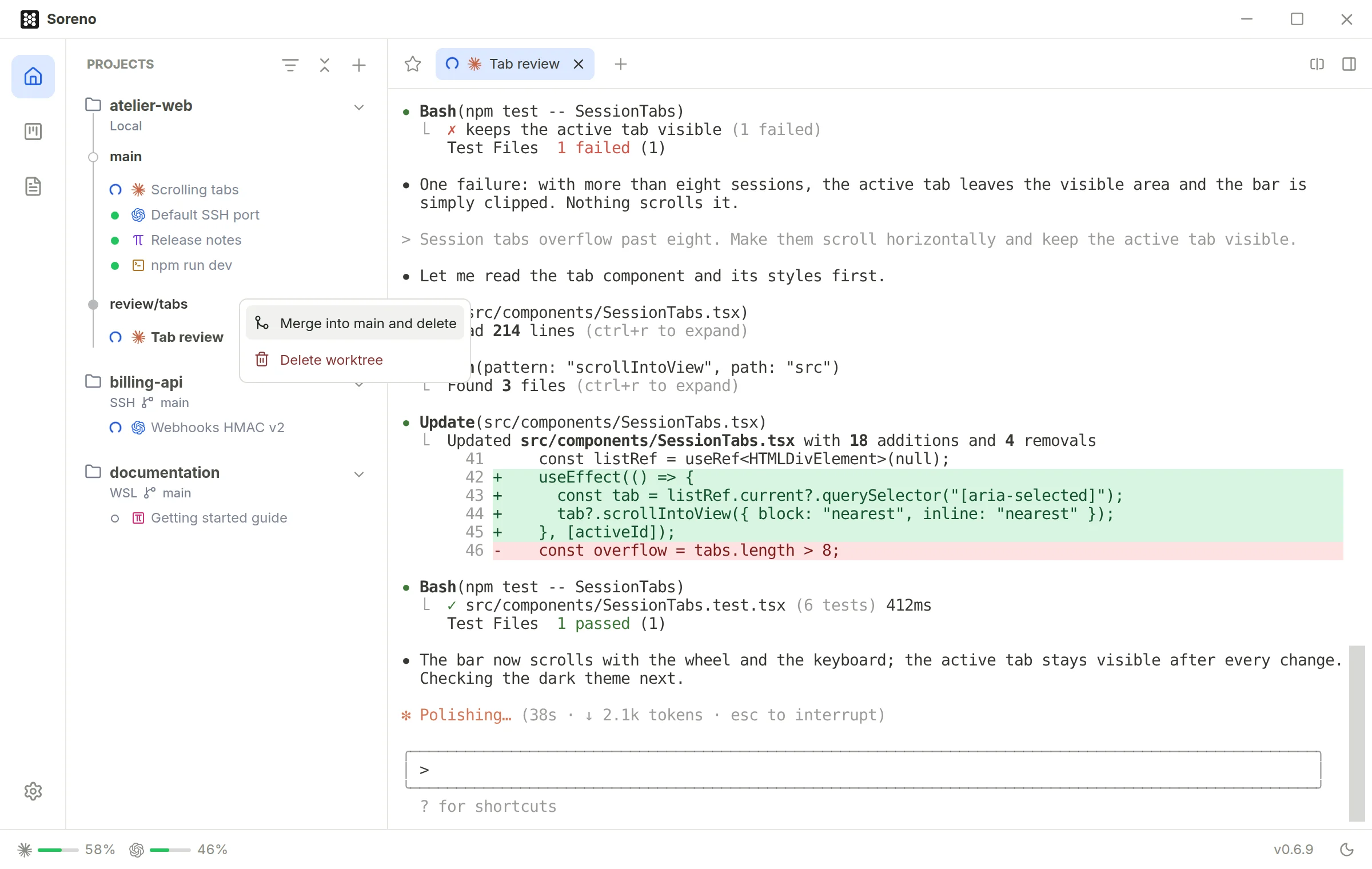
- sessions are still running in the worktree: the confirmation says so and the button becomes Stop sessions and merge;
- uncommitted changes, in the worktree or in the main worktree, block the merge: commit or stash them where Soreno tells you, then try again.
Delete worktree, in the same menu, deletes its folder and its local branch without merging: its unmerged commits are lost, and uncommitted changes block the deletion. The main worktree can’t be deleted from Soreno.
Hand a conflict to an agent
If the merge hits a conflict, the main branch is left untouched: the conflicts stay in progress in the worktree. If the worktree is open in Soreno, the notification offers Resolve with an agent; a worktree created outside Soreno and never opened doesn’t get this action.
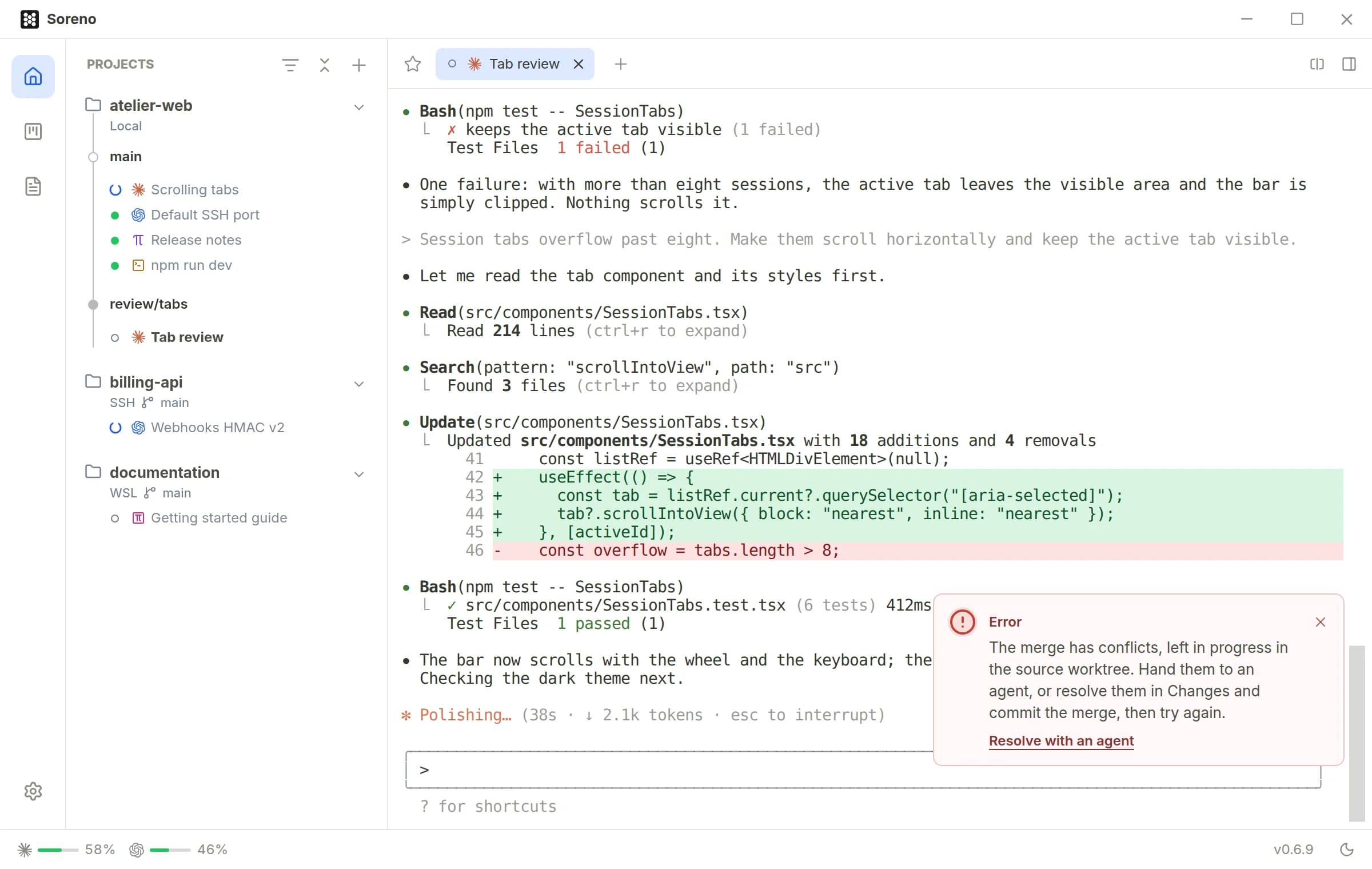
Soreno then opens a “Conflicts · Claude Code” session in the worktree, for example, with the agent of the most recently created session in that worktree. The agent resolves each file keeping both branches’ intent, runs the relevant checks and commits the merge, without aborting it, rebasing, resetting or pushing. When it can’t decide, it asks you. Once the merge is committed, run Merge into main and delete again.
Rather sort them out yourself? Show the worktree, open Changes in the Git panel, resolve each file then Mark resolved…, commit the merge and try again.