 Soreno
Sessions
Agent states and notifications
What the indicators next to each session mean, when Soreno notifies you, the app badge and how to turn notifications off.
Read a session’s state
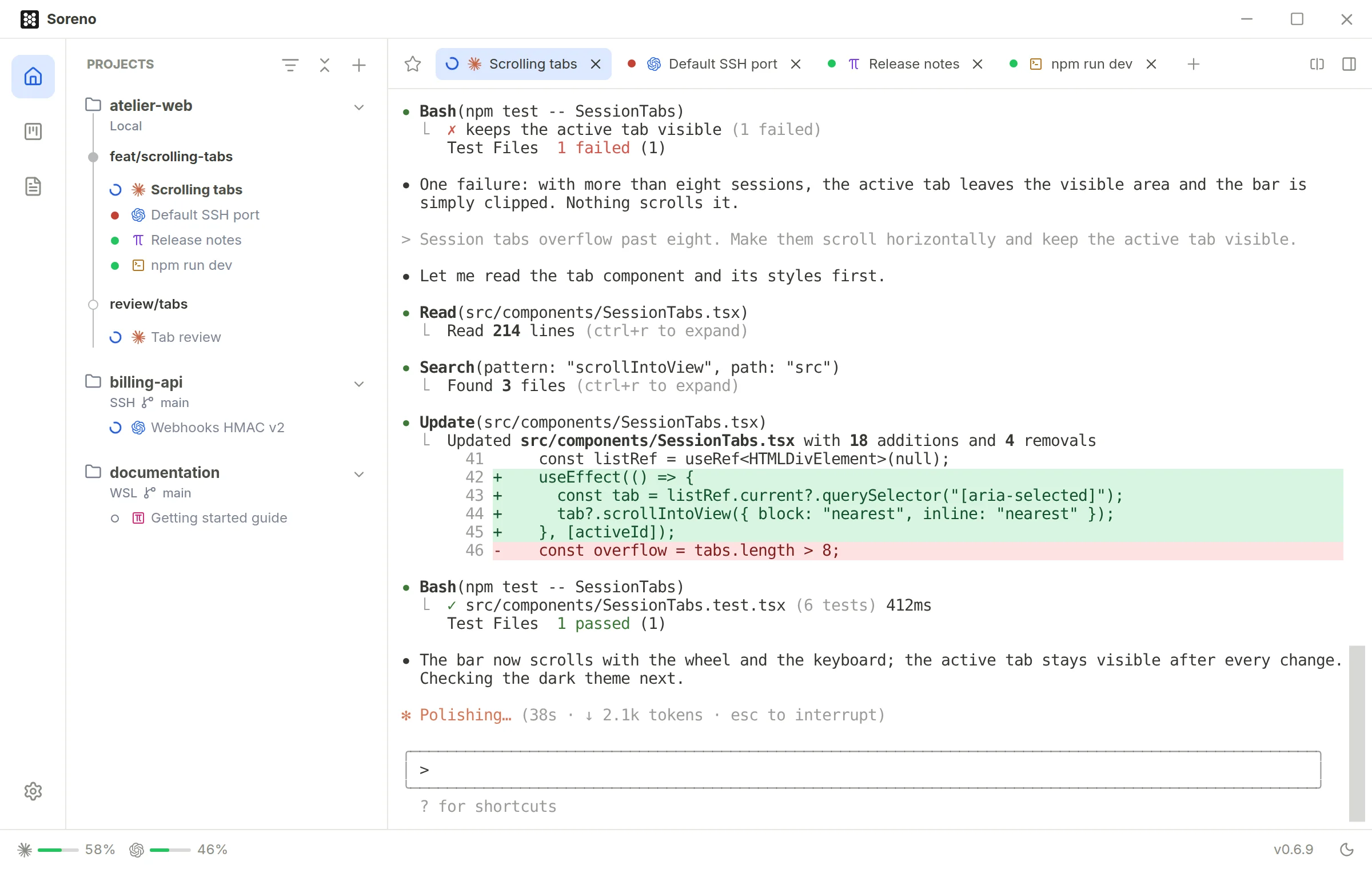
An indicator sits before each session, in the tabs and under the project in the project column. The tab’s tooltip spells the state out.
- the blue spinner: Agent working…;
- the red dot: Agent waiting · reply needed, to a question or for a permission; it stays red, even on screen, until you answer;
- the orange dot: Agent finished · unread, the agent finished its turn out of your sight; it clears when you show its terminal;
- the green dot: Running, the process is alive and nothing new is waiting for you;
- the grey dot: Stopped;
- the empty circle: Ready, the session isn’t launched.
Running means the process is alive, not that the model is thinking. Claude Code, Codex, Pi and OMP are all tracked the same way, locally, in WSL or over SSH. In a split tab, each pane has its own indicator.
A collapsed project sums up its sessions next to its name: the spinner if one is working, otherwise the red, orange or green dot, followed by the number of active agents.
System notifications
When an agent finishes its turn or waits for your reply, Soreno shows a system notification. Its title is the session’s name; below it, the project, then the start of the agent’s last reply, or “Waiting for your reply”.
Sessions that report at almost the same time share one notification: “3 sessions need you”, followed by their names. One click brings Soreno to the front on that session, and on its pane in a split tab.
No notification for the session shown in the active window: it’s already in front of you. A session hidden behind another tab does notify you, even with Soreno in the foreground.
If the system refuses the notification, Soreno says so at the bottom right: “System notification failed”, with the reason.
The app badge
Soreno’s icon counts the sessions waiting for you or unread:
- macOS: the Dock badge;
- Windows: a badge on the taskbar icon;
- Linux: the launcher counter, in Ubuntu Dock, Dash to Dock or KDE Plasma’s task manager, with the
.debpackage.
A notification sent while Soreno is in the background also asks for your attention: the icon bounces or flashes, depending on the system.
Go straight to the one waiting
Ctrl+Shift+U (Cmd+Shift+U on macOS) shows the next session waiting for you: first those waiting for a reply, then those that finished unread. Sessions already on screen are skipped. Settings, under Shortcuts, calls it Next session waiting for a reply.
Turn notifications off
Open Settings, the gear at the bottom of the activity bar, then General: in the Notifications group, turn off Agent notifications. They’re on by default.
When off, Soreno sends no notification, shows no badge and asks the system for no permission. The indicators next to the sessions stay.
On macOS, permission is asked at the first notification; you then manage it, and its sound, in System Settings > Notifications.