 Soreno
Kanban
Issues and agents on the Kanban
Create and track issues on Soreno’s Kanban, have an agent create them, start an agent from an issue and get its summary back as a comment.
Open the board
The Kanban is the Kanban icon in the activity bar, on the left. It takes the place of the terminal and the Git panel without stopping your sessions: the house icon takes you back to your agents.
The board is local, with no account. Its issues, numbered SOR-1, SOR-2…, are stored on this computer alongside your agent sessions. They sit in six columns: Backlog, Todo, In Progress, In Review, Done and Canceled.
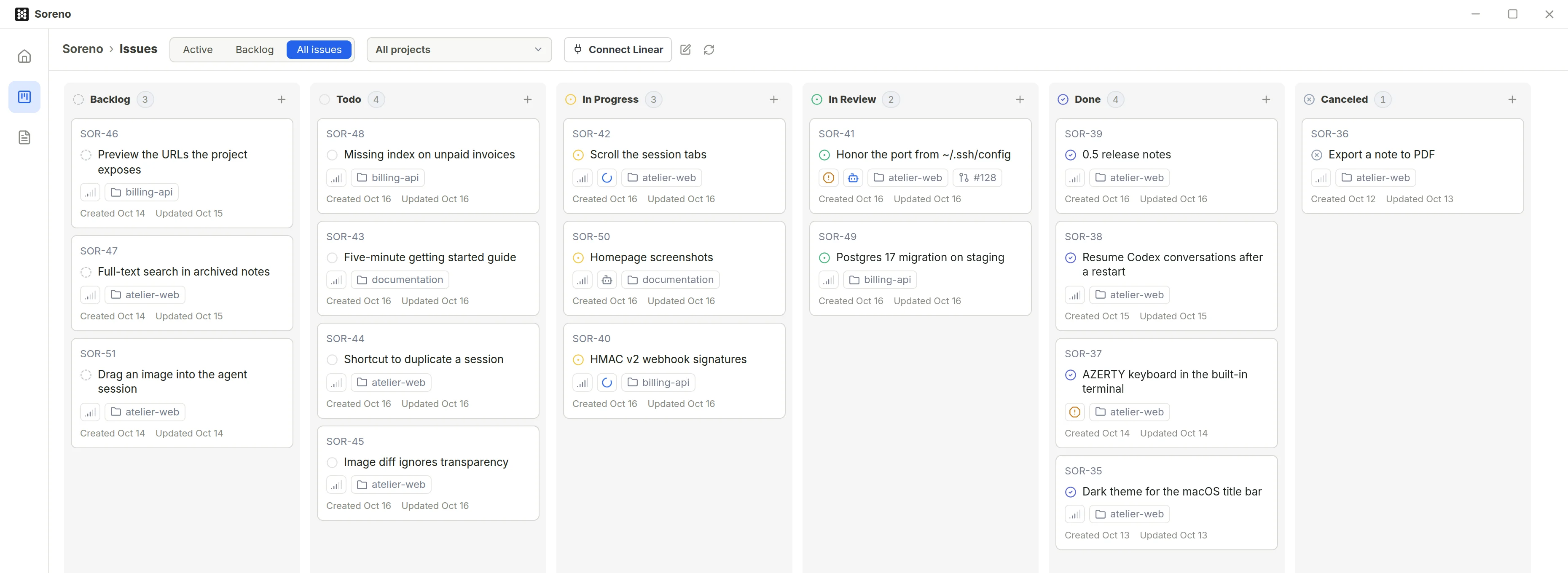
At the top of the board, choose what you see:
- Active: the Todo, In Progress and In Review columns;
- Backlog: the Backlog column only;
- All issues: all six columns;
- Project: All projects, one Soreno project, or No project.
Each card shows its identifier, its project, its pull requests, the agent working on it and its state, with its created and updated dates. Drag a card to another column to change its status; click it to open the issue, and Back to issues to return to the board.
Create and edit an issue
The New issue button, top right, opens the form; a column’s + creates the issue straight in that column. Give it a title, then Enter moves on to the description, in Markdown. Add images takes PNG, JPEG, GIF and WebP files, up to 25 MB.
Below the description, set the status, priority, project and labels. Create issue, or Ctrl+Enter (Cmd+Enter on macOS), saves it. Check Create more to keep the form open and add issues one after another.
In the issue, the title and description are edited in place. The right panel sets Status, Priority, Labels and Project; New label creates a label without leaving the issue. At the top, New sub-issue creates one under this issue, and Delete issue deletes it with its comments. A linked agent session is kept.
Have an agent create an issue
An agent started from Soreno knows how to create an issue: ask it, in a terminal or in Chat (OMP). It only does so when you ask. The issue lands in the Todo column, in the project of the session’s linked issue if there is one, else in the session’s project; a session in a group’s overview creates it without a project. The agent gets its identifier back to tell you.
Soreno lets you know too: a notification gives the session’s name and the issue’s identifier and title, with an Open button. Say you want it in Linear if your account is connected.
Start an agent from an issue
Drag an issue into In Progress: Soreno asks “Start an agent on SOR-48?” and tells you which agent will start, in a worktree of which project. Start agent sets it off with the issue as its brief, without touching the branch you are on. Not now moves the issue without an agent.
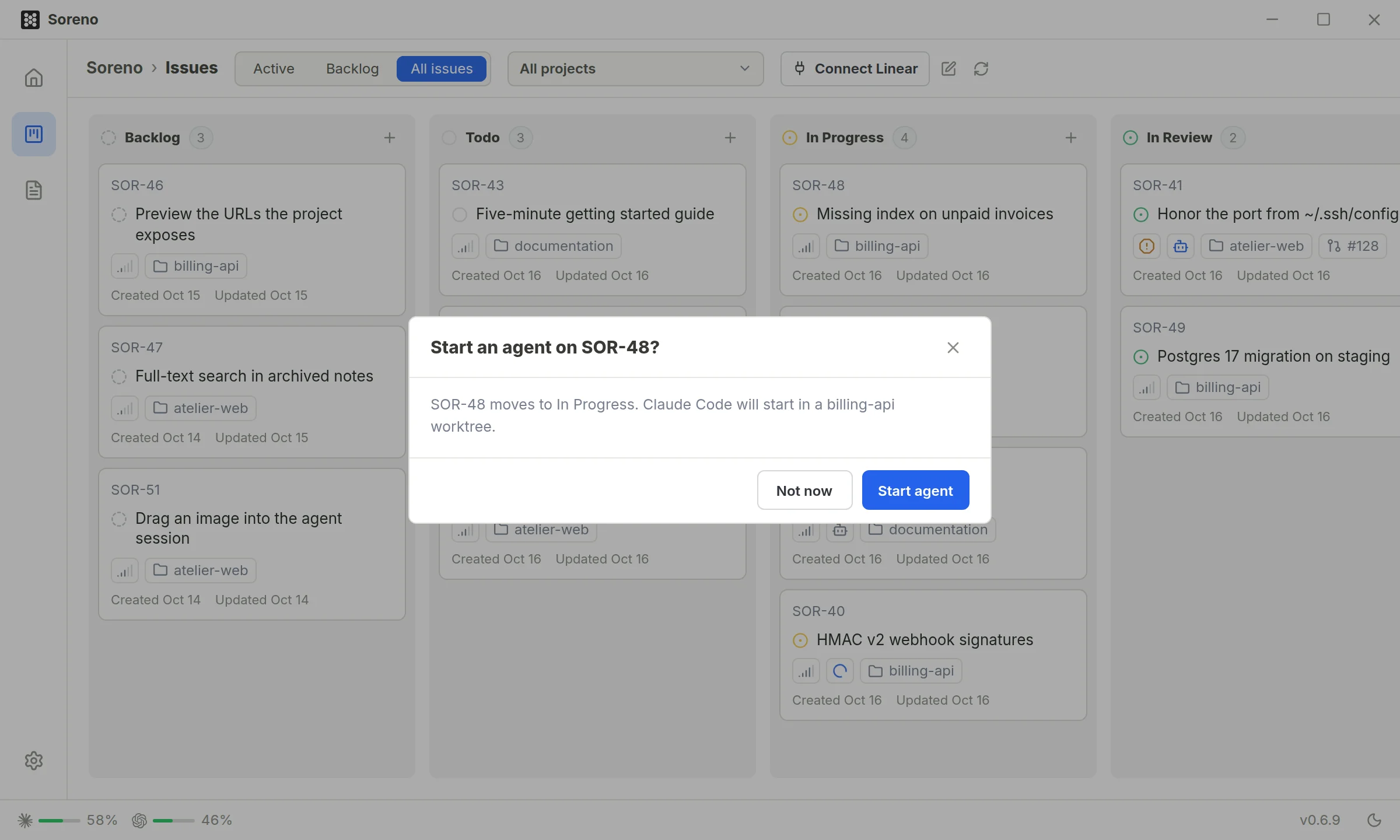
The question only comes up when the issue has a Soreno project. Otherwise, pick its project in the issue, then use the Agent section of the right panel. Change there lets you choose the agent, uncheck Work in a dedicated worktree and check Open the terminal after starting before you click Start agent. Soreno remembers the last agent you chose.
To save a step, check Start an agent in the create form: Create and start agent creates the issue and starts the agent right away.
If the start fails, Soreno shows the error. An issue dragged into In Progress stays there; started from the issue or the create form, it goes back to its column.
The agent’s summary
When the agent is done, its summary lands as a comment, signed with the agent’s name, and the issue moves to In Review. An issue already in Done or Canceled stays put.
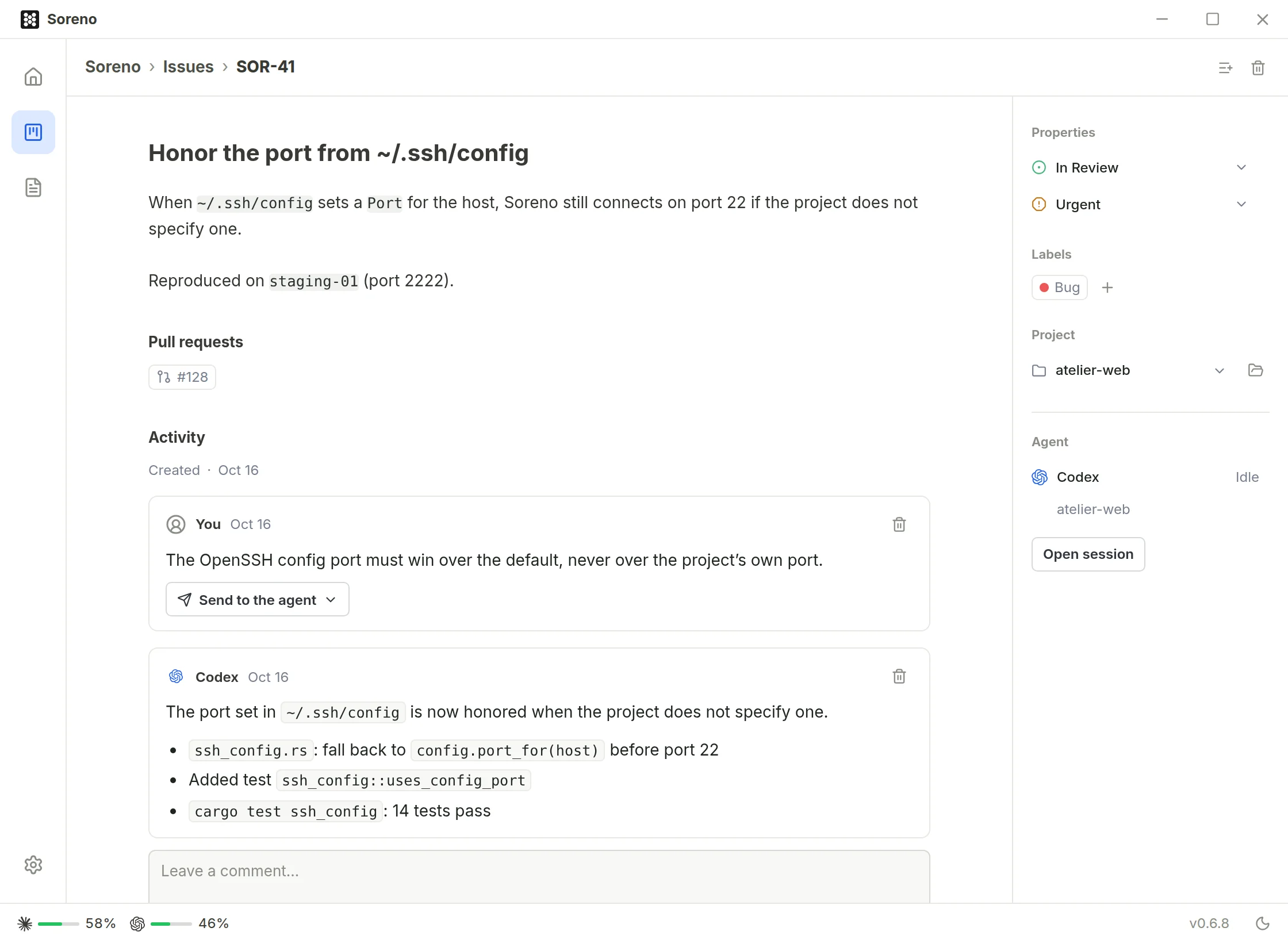
The issue’s Agent section shows the session and its state. Open session takes you there; Reopen session brings it back if it was closed. Once the session has ended, the issue keeps track of how: Merged into main, Worktree removed, Session deleted or Project removed.
Send a comment to the agent
Write your remark in Leave a comment…, then Comment. Under the comment, Send to the agent sends it to the issue’s agent. If other agents of the project are running, the button opens a menu to pick who gets it.
The delivery state shows under the comment: “Sent to … · read when its turn ends” while the agent is still working, then “Delivered to …”. Only the agent linked to the issue then posts a new summary there, covering only what changed since the previous one.