 Soreno
Review and Git
Comment on the diff
Review what the agent changed in the Git panel, comment on a line or a range of the diff and send the remark to the agent, which reads it at the end of its turn.
Open the Git panel
The Git panel opens to the right of the terminal: click the Project tools button in the tab bar, or press Ctrl+Alt+B (Cmd+Option+B on macOS). The same shortcut hides it.
At the top of the panel are four views: Files, Changes, History and Branches. Reviewing happens in Changes, with the project name and its branch alongside. If the folder isn’t a Git repository yet, the panel says so and offers Initialize Git.
Browse the changed files
The list sorts files into Staged, Changes and, when there are any, Conflicts, each with its file count. Click a file to show its diff; the first one is picked for you.
- Sort files: By path, Most changed first or Least changed first;
- View as tree or View as list, depending on the size of the project;
- Previous file and Next file, above the diff, move from file to file without going back to the list;
- Diff options, the diff’s … button: Unified or Split, and Wrap lines.
If the agent is still editing the file while you read, Soreno tells you: “The repository changed after this diff was loaded.” Click Refresh diff.
Enlarge the diff
To read comfortably, click Expand project tools in the panel header: it takes the terminal’s place. Return to terminal brings it back to its size. Hide file list frees the list’s width as well; Show file list opens it again.
Comment on a line or a range
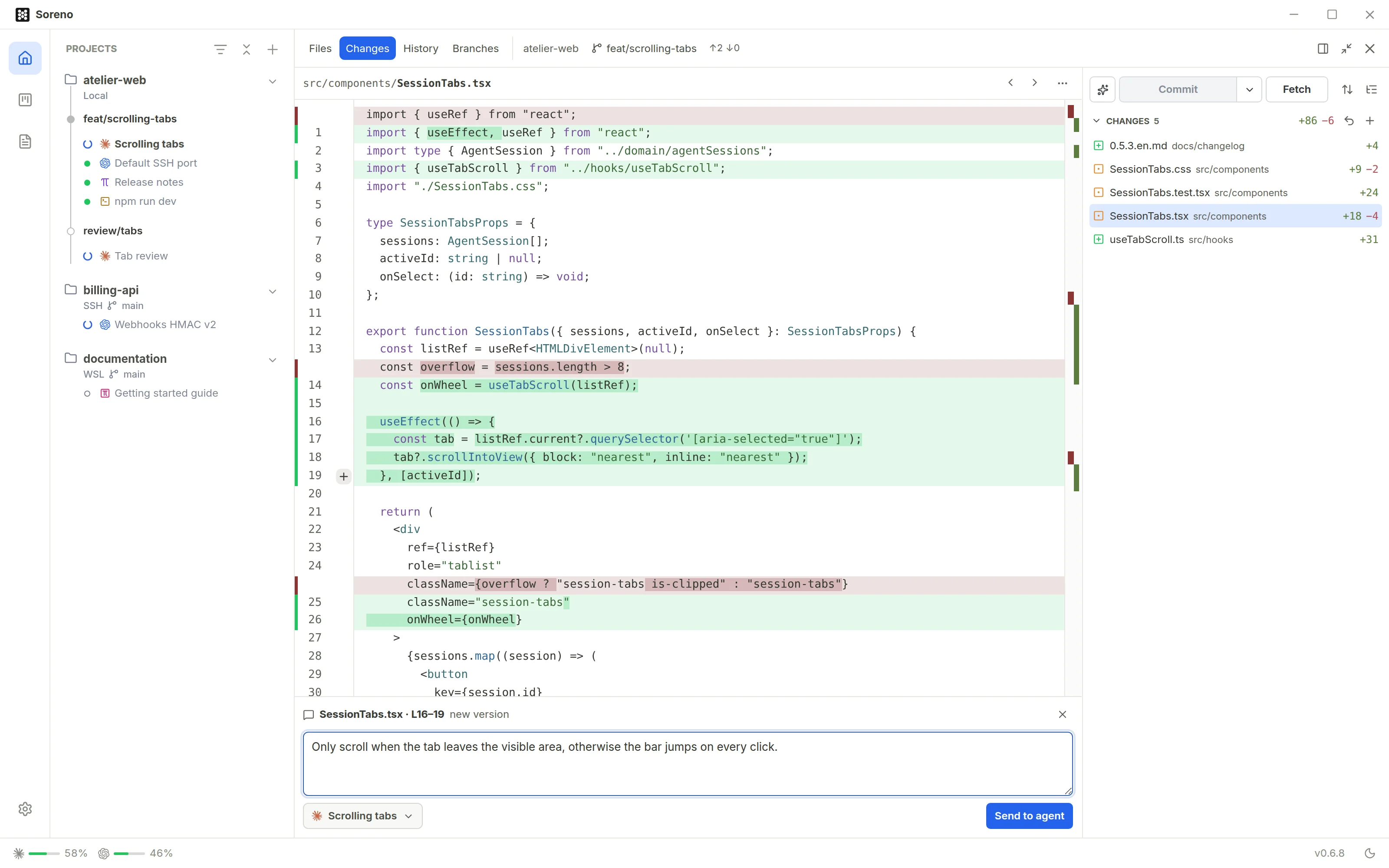
Hover a line of the diff: a + shows up in the gutter. A click comments on the line, a drag on a range, and Shift+click extends the current selection. You can also select lines in the text, then click the + that appears next to them.
In the Unified view, you comment on the new version. In the Split view, the left side lets you comment on the old version too: the comment box says which, with the file and the lines, for example L16–19.
Write your remark as you would in a pull request review. Esc closes the comment box.
Send the remark to the agent
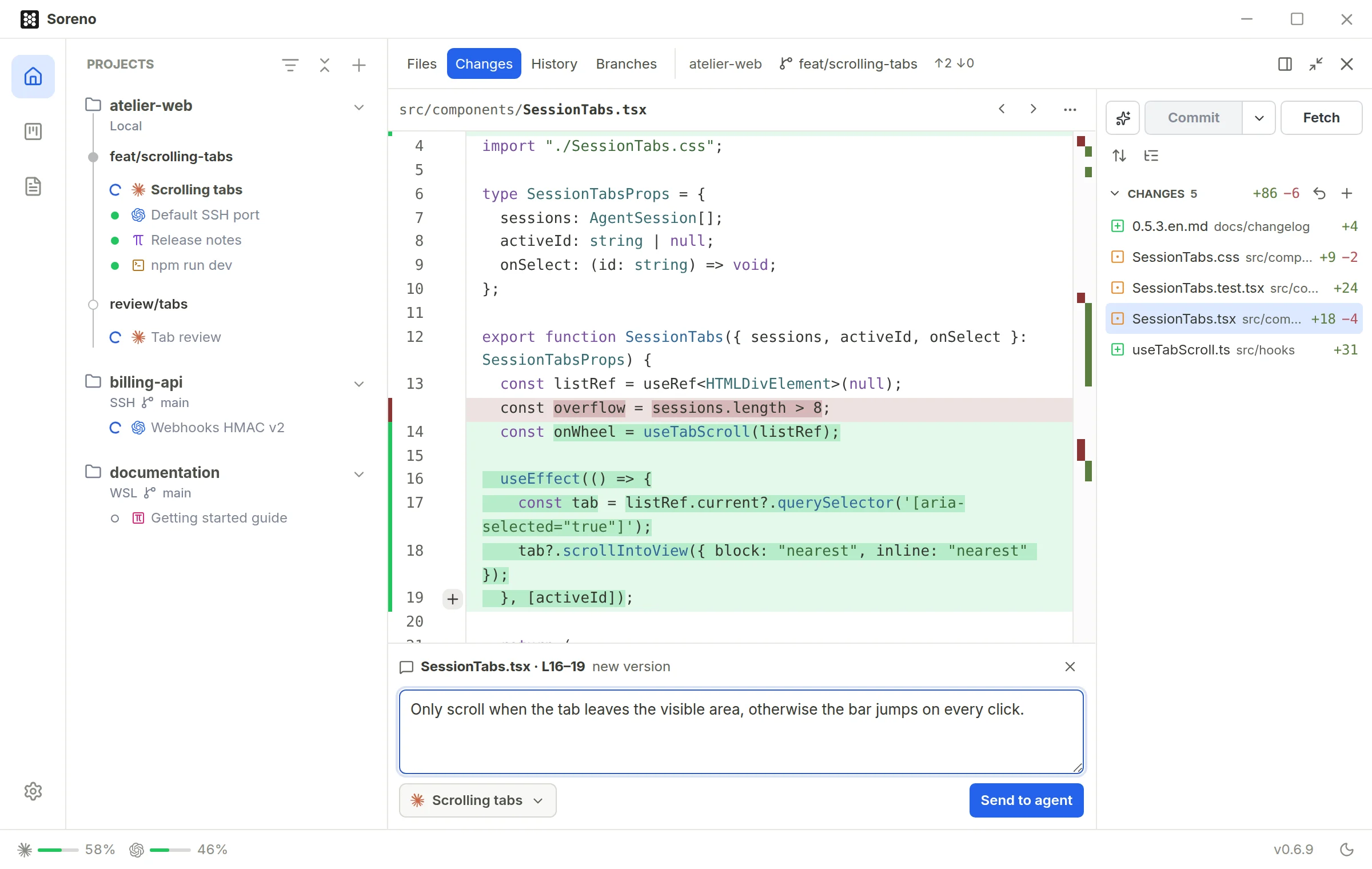
The remark goes to an agent running in the project: Pi, OMP, Codex, Claude Code or Chat (OMP). If there are several, pick one in the Agent list; the selected session comes first. If there are none, Soreno asks you to start one first.
Click Send to agent, or press Ctrl+Enter (Cmd+Enter on macOS). The agent isn’t interrupted: it reads the remark at the end of its turn. The comment box follows the delivery:
- “Sent to … · read when its turn ends”: the remark waits for the turn to end;
- “Delivered to …”: the agent got it;
- “Not delivered to …”, with the reason when Soreno knows it.
If the diff changes before you send, Soreno shows “The diff changed: select the lines again.” Your text is kept. In a project group, the list offers the agents of the group and of its projects.
To point at a file without a remark, right-click it in the list: Insert path in active agent types it into the terminal of the agent in the active pane. This entry doesn’t target Chat (OMP), which has no terminal.
What the agent gets
The agent gets a message in English, like its other instructions, starting with Soreno comment on followed by the file and the lines. It holds:
- your remark, in full;
- the commented excerpt, up to 200 lines, with its version and the kind of change: staged, unstaged or untracked file;
- the
git diffcommand that shows the change or, for a new untracked file, a prompt to read it directly; - the instruction to act on the remark or explain why it disagrees.
In a project group, the message also names the repository and its path. In Chat (OMP), the remark lands straight in the conversation.