 Soreno
Get started
Where your projects live: local, WSL and SSH
A Soreno project lives on your machine, in a WSL distribution or on an SSH server. Here’s how to choose, connect, keep agents running on the server and group the projects of one machine.
Choose a project’s environment
The Environment field of the Add project form offers Local, one WSL · name line per distribution found, then SSH. Clone repository offers the same choice. The environment decides where everything else runs: the agents, the terminal and Git.
So the CLI must be installed where the project lives. If it’s missing, Soreno says where it looked: “on this computer”, “in WSL (Ubuntu)” or “on” the server’s name.
Does the project have sessions? Its folder and environment can’t be changed until they’re deleted. A project in a group must be removed from it first to change machine.
WSL projects
On Windows, pick the distribution in Environment, then Choose a folder…: the picker opens at that distribution’s root. The folder must belong to the chosen distribution.
Agents start inside the distribution, with the CLIs installed in WSL, not the Windows ones. If discovery fails, Soreno shows “WSL discovery is unavailable. Local projects still work.”, with Refresh environments to search again.
Connect to an SSH server
Soreno goes through your machine’s OpenSSH client: Host or OpenSSH alias takes a server name or an alias from your ~/.ssh/config. Left empty, Port (optional) uses the one from your OpenSSH config, such as Port 2222 for an alias, else 22. If you already have an SSH project, the SSH connection menu reuses its connection; New SSH connection starts from an empty form.
Soreno never asks for a password or passphrase. Point to the private key with Choose key…, or leave the field empty to rely on ssh-agent. A protected key must be loaded with ssh-add before you retry.
On first contact, Confirm the server identity shows its SHA256 fingerprint. Compare it with the trusted server console or ask its administrator, then Trust and continue. Afterwards, Server identity confirmed appears, with Recheck server identity.
If the connection fails, the message tells you what to check:
- authentication refused: the user and private key, or an encrypted key to unlock in ssh-agent;
- connection timed out: the host, port, network, VPN or firewall;
- connection refused: the host, port and SSH service;
- security warning, the host key changed or was revoked: don’t continue until the administrator confirms the new fingerprint.
On the server, you also need a POSIX shell, Git 2.35 or later, and the agents you want to run.
Browse remote folders
Choose a folder… opens the server’s explorer. Click a folder to enter it, Parent folder to go up, then Select this folder.
To add several repositories at once, tick Select multiple projects, then the folders. Below the list, tick Create a group with the selected projects to file them into a group; Soreno suggests the current folder’s name as the Group name. Then click Select 2 projects, which closes the explorer. The projects, and the group, are created when you click Save.
Sessions that outlive Soreno
On an SSH server, each terminal session runs server-side. Closing Soreno or losing the connection only cuts the SSH client: the agent carries on. Reopen the session and its terminal is back, including what the agent printed in the meantime. Stop really ends the session. To do this, Soreno installs a small tool in ~/.cache/soreno, without admin rights, on Linux as well as macOS. Chat (OMP) only survives on a Linux server.
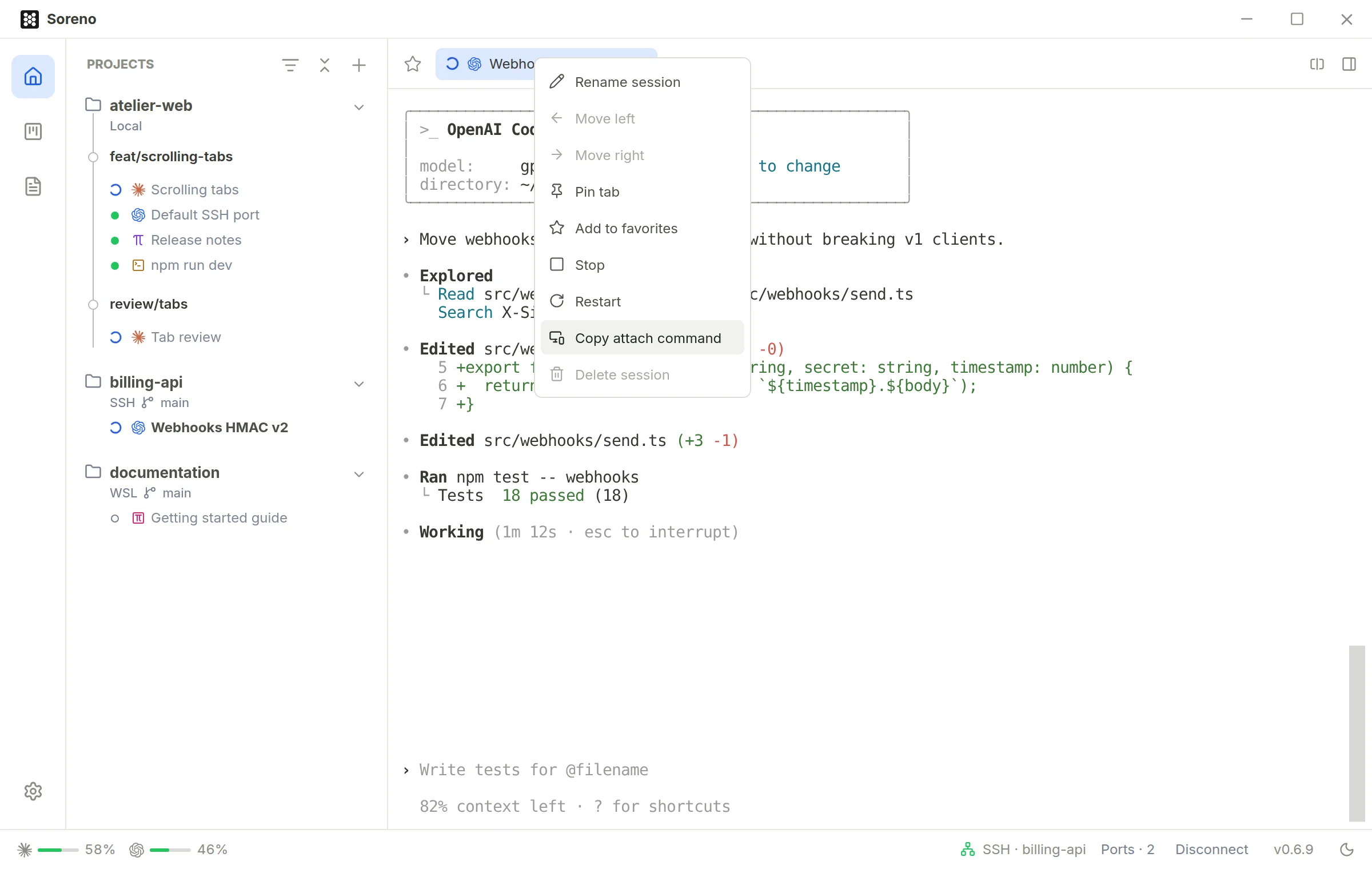
Right-click the tab of a running terminal session, Copy attach command: run it from another terminal to follow this session, even while Soreno shows it. Ctrl+\ detaches you without stopping the session.
The folder and its files stay on the server: quick open, search and the Git panel work remotely. Files you paste into an SSH project are sent to the server, up to 32 MiB; files you download from it are limited to 8 MiB.
The Disconnect button in the status bar suspends the SSH connection and stops agents in every project using it: unsaved work may be lost. Files and launchers are kept, and Git is suspended until you click Connect.
Open the server’s ports
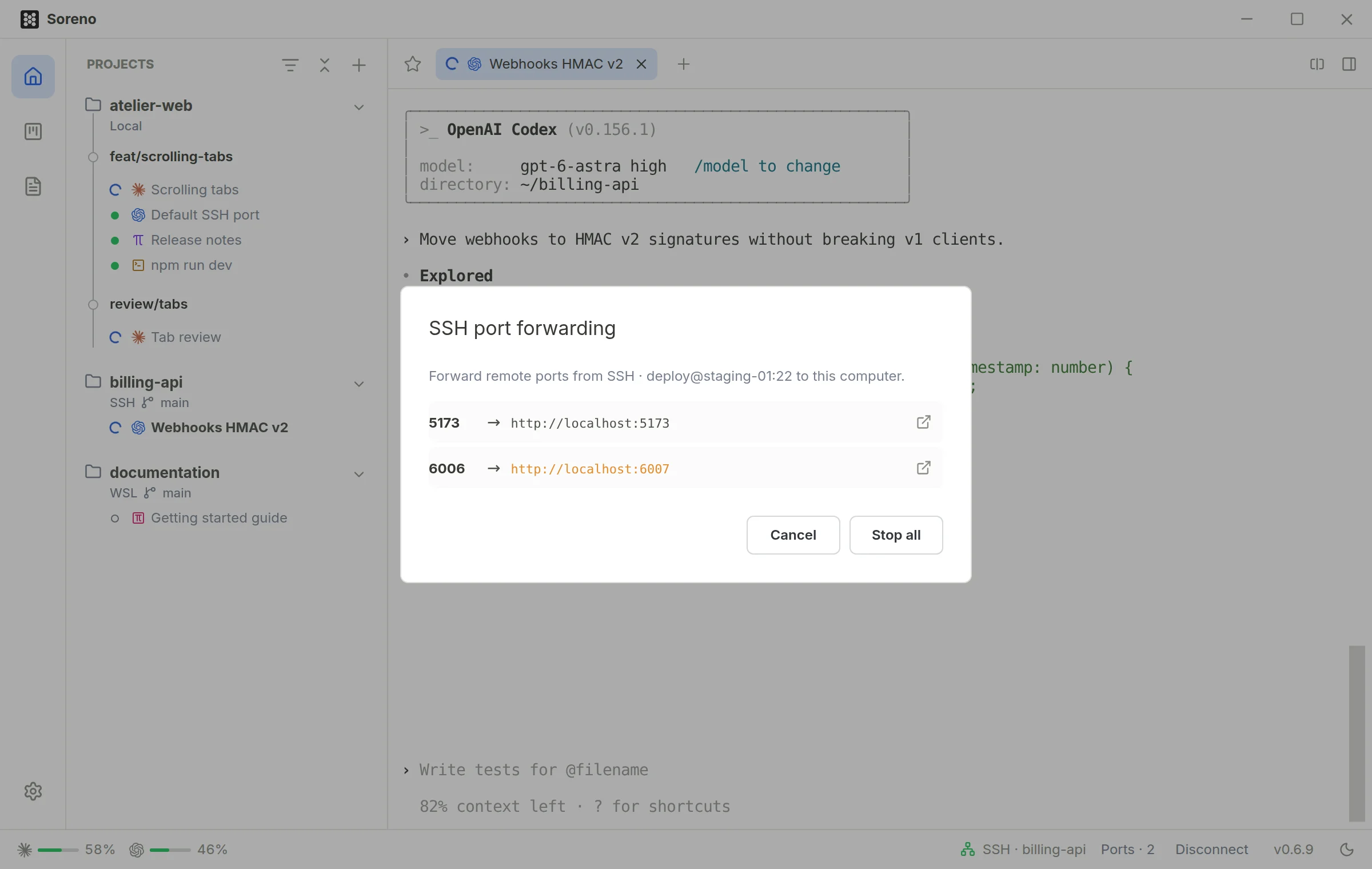
The Ports button in the status bar, for an SSH project, opens SSH port forwarding. In Remote ports, separate ports with spaces; a range like 8088:8095 can be entered in either direction. Start forwarding, then one click on Open and the local address opens the service in your browser.
If the matching port is already taken on your side, Soreno picks a free one and tells you. The button reads Ports · 2 when two forwards are active; Stop all ends them.
Group the projects of one machine
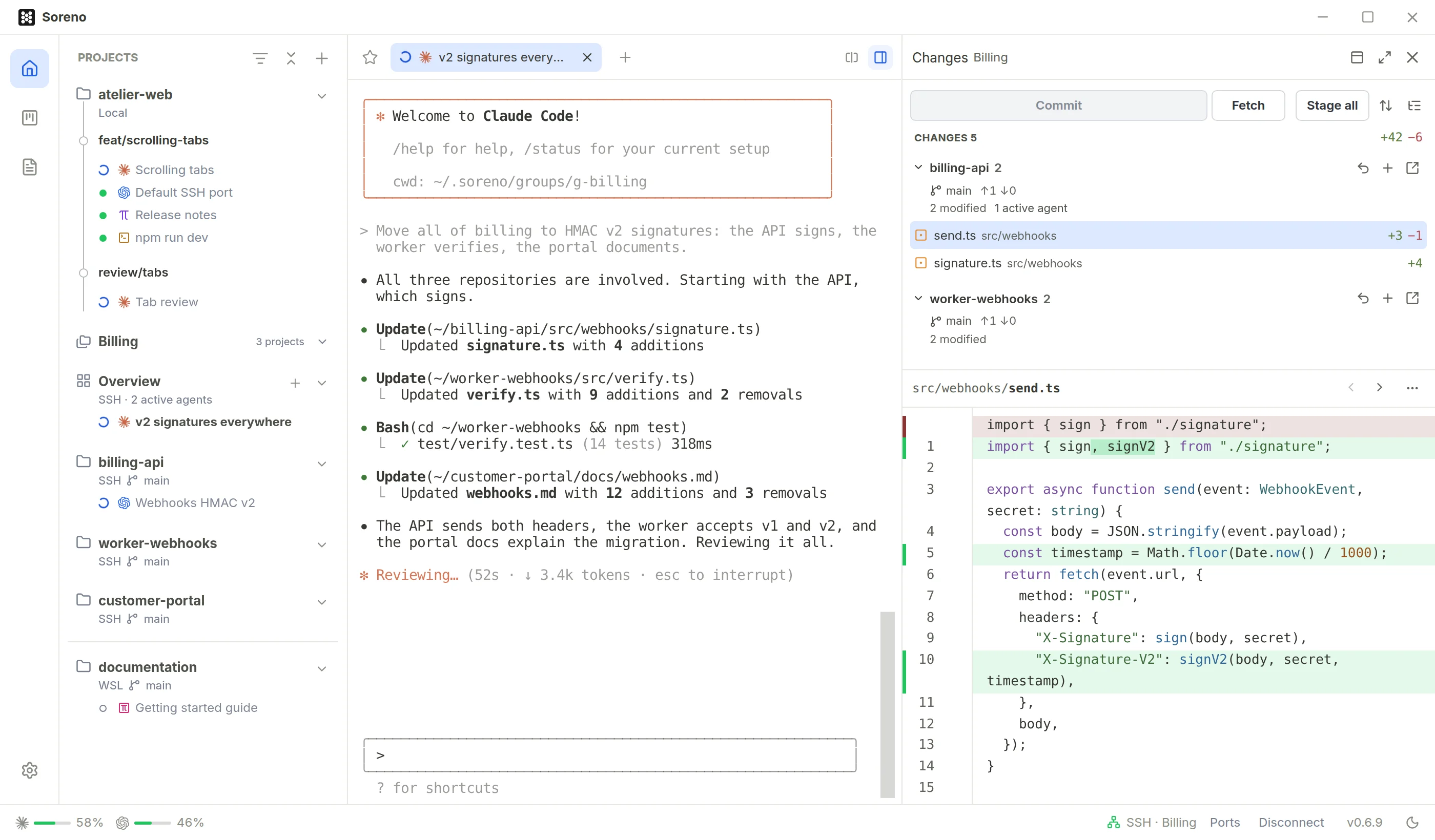
The + at the top of the project column offers Create group. Enter a Group name, tick the Projects in this group, then Save. A project can belong to only one group, and a group only brings together projects from the same machine: locally, in the same WSL distribution or on the same SSH server. The others show “This project cannot be added to this group”.
Right-click a project: Move to “group name” or Remove from group. Right-click a group: Open overview, Edit group, Move group up or down, Delete group. Deleting a group deletes its overview sessions and their conversations, not its projects.
To spot a project or group at a glance, pick Customize icon and color in its context menu. Choose an icon and a color, or a Custom image with Import image…: PNG, JPEG, WebP or GIF, 5 MB max. Reset goes back to the default look.