 Soreno
Sessions · Updated
Automations: an agent on a schedule
Start an agent at a set time on an SSH server, every day, on weekdays or every week, even with Soreno closed, then find its session in Soreno.
What an automation is
An automation starts an agent at a set time on an SSH server, for example a skill every morning. It runs on the server, even when Soreno is closed and your computer is off; its session then waits for you in Soreno.
It brings together a name, an SSH project, an agent, Claude Code, Codex, Pi or OMP, a prompt and a schedule. Chat (OMP) and Terminal aren’t offered.
Open the Automations view
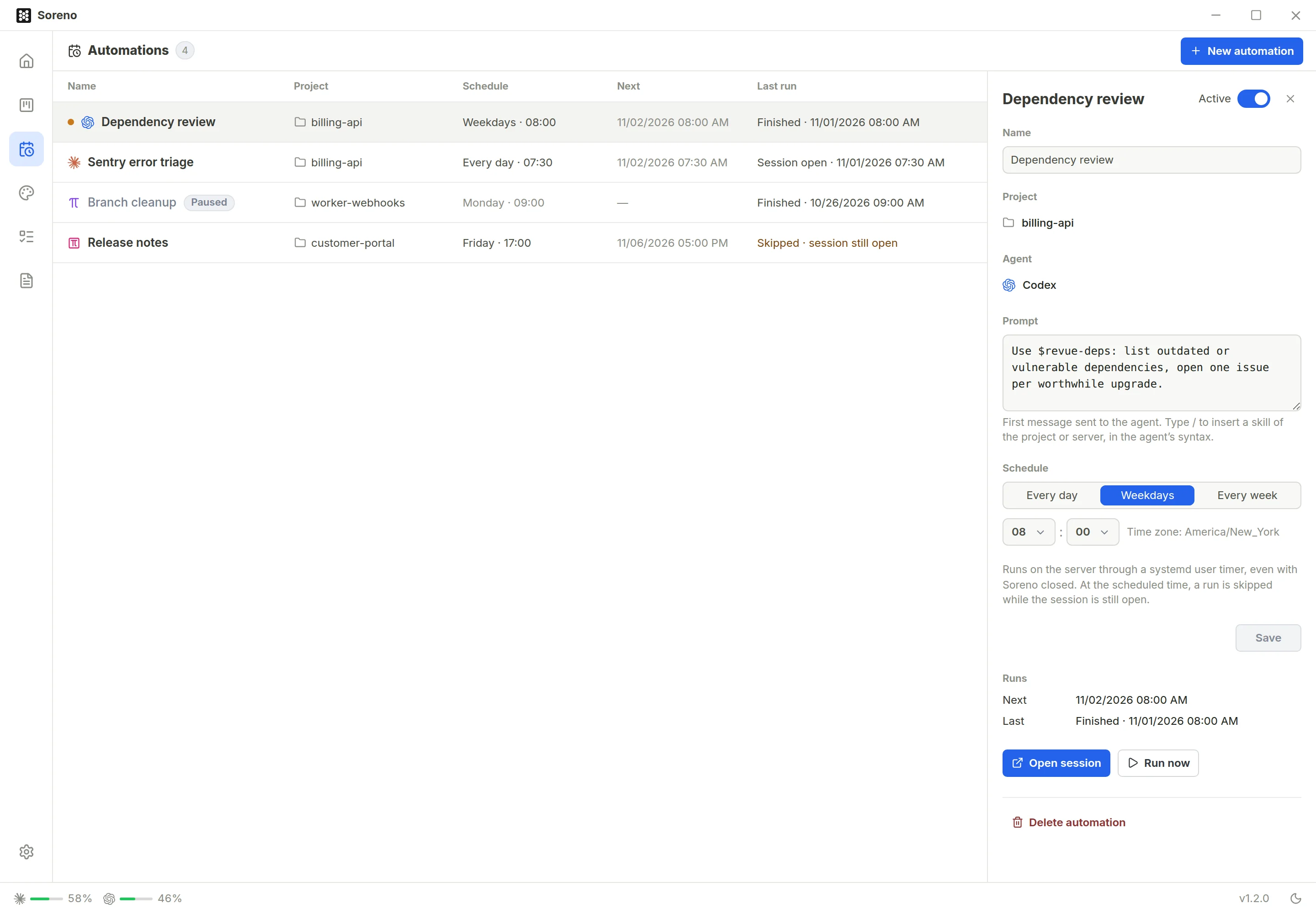
The Automations entry, the calendar icon in the activity bar on the left, lists your automations in columns: Name, Project, Schedule, Next and Last run. Without an SSH project, Soreno first asks you to add one.
Create an automation
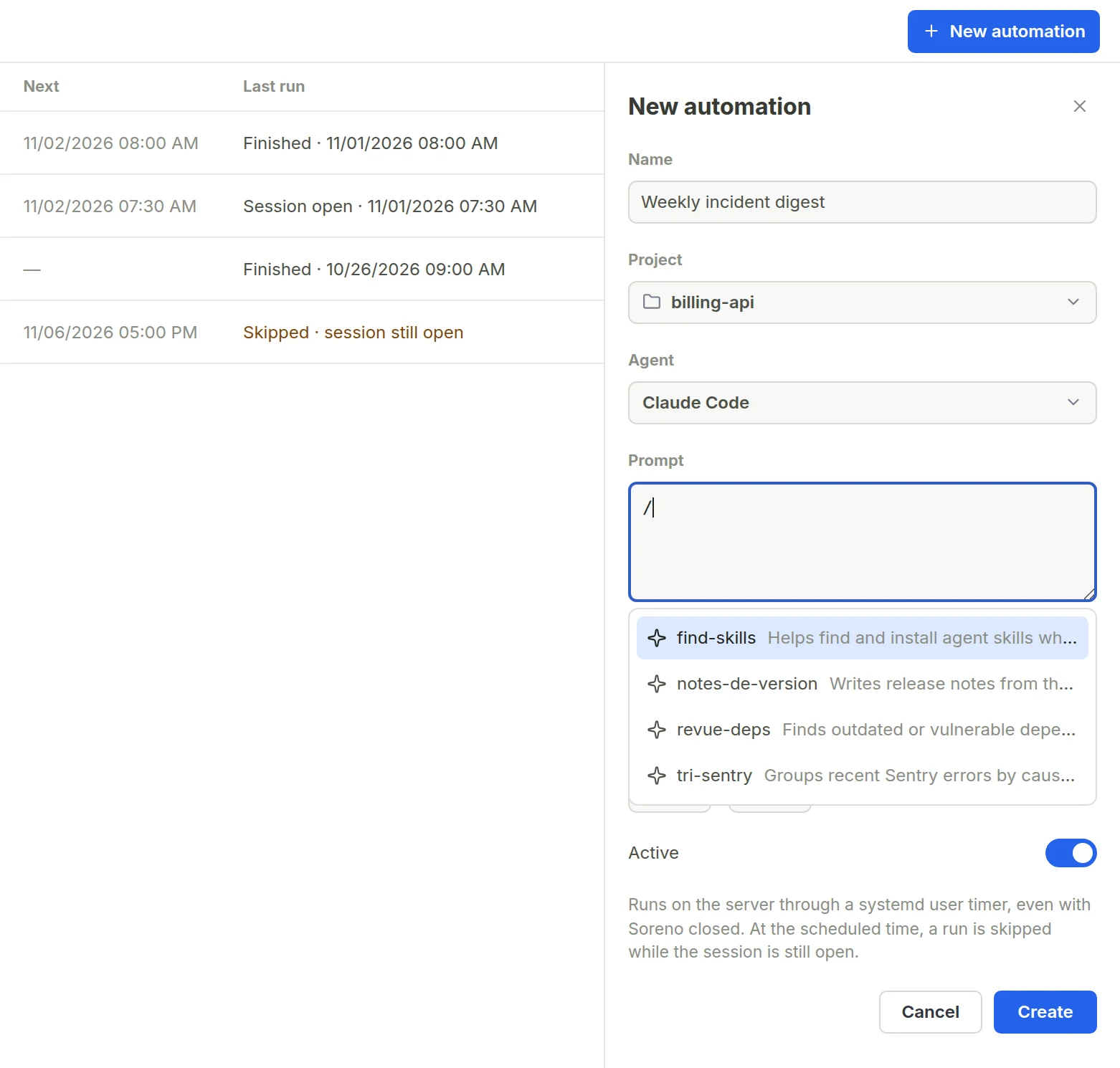
New automation opens the panel. Enter a Name, pick the SSH Project and the Agent, write the Prompt, then set the Schedule: Every day, Weekdays or Every week with its Day, at the hour and minutes you want. The time follows your computer’s time zone when you save, shown under the schedule. Create installs the automation on the server.
The prompt is the agent’s first message. Type / in the field: Soreno offers the project’s and the server’s skills, and inserts your pick in the agent’s syntax, /name for Claude Code, $name for Codex, /skill:name for Pi and OMP. Skills are read on the server at the first /, if the project is connected; with the same name, the project’s wins.
Soreno adds a favorite session named after the automation to the project: that’s where each run starts. The project and the agent stay the ones picked at creation.
At the scheduled time
The server starts the agent in the automation’s session, with the prompt as its first message, as if you had started it from Soreno. The agent stays open at the end of its turn; if it asks for a permission, the request waits for your answer.
If the previous run is still going in that session, the new one is skipped: nothing replaces an open session. After the server restarts, a single missed run is caught up.
Open the session from the list, or with Open session: you attach to it and find what the agent printed. The conversation of a run started by the server isn’t linked to the session: Soreno doesn’t resume it automatically.
Follow the runs
The Last run column gives the state of the latest one:
- Never run;
- Session open, with its date: the agent is still there;
- Finished, with its date;
- Skipped · session still open;
- Failed · agent not found on the server, or Failed with its date for another error.
A dot marks a run you haven’t opened yet. The list is read again on the server when the view opens, then every 30 seconds while it stays on screen, for connected projects; a disconnected project shows Not connected, its last known state and Connect. Run now starts a run right away.
Edit, pause, delete
Click an automation to open its panel. Save applies a new prompt or schedule on the server. The name can be changed too: it’s its session’s name.
The Active switch, at the top of the panel, pauses or resumes the automation right away, without saving your other changes: the row shows Paused and no longer has a next run.
Delete automation removes the timer from the server. The session and its history are kept, and a run still open carries on. For a disconnected project, deleting stays local: the timer isn’t removed from the server. A session or project carrying an automation can’t be deleted before it.
What the server needs
Automations need a Linux server with systemd as its init. Soreno installs a systemd user timer there, in ~/.config/systemd/user, and the script of each run in ~/.config/soreno/automations; if needed, it turns on lingering (loginctl enable-linger) so the timer runs without an open session. Containers without systemd aren’t supported.