 Soreno
Design · Updated
Draw screens with Design
The Design view: a whiteboard where Claude Code, Codex or OMP draws your screens in HTML/CSS, to tweak frame by frame, then to have a coding agent implement.
In the activity bar, the palette icon opens Design: a whiteboard where an agent draws screens and components in HTML/CSS. You only see the result, in frames.
Create a board
New board asks for a Name, a Project and an Agent: Claude Code, Codex or OMP. With No project, the agent works in ~/.soreno/design. It starts when the board opens; if it stops, Start agent restarts it. Logs opens its terminal over the board.
The board’s name, top left, opens the board list: switch from one to another, create, rename or delete one. Deleting a board deletes its frames and its agent session, stopped if it is running.
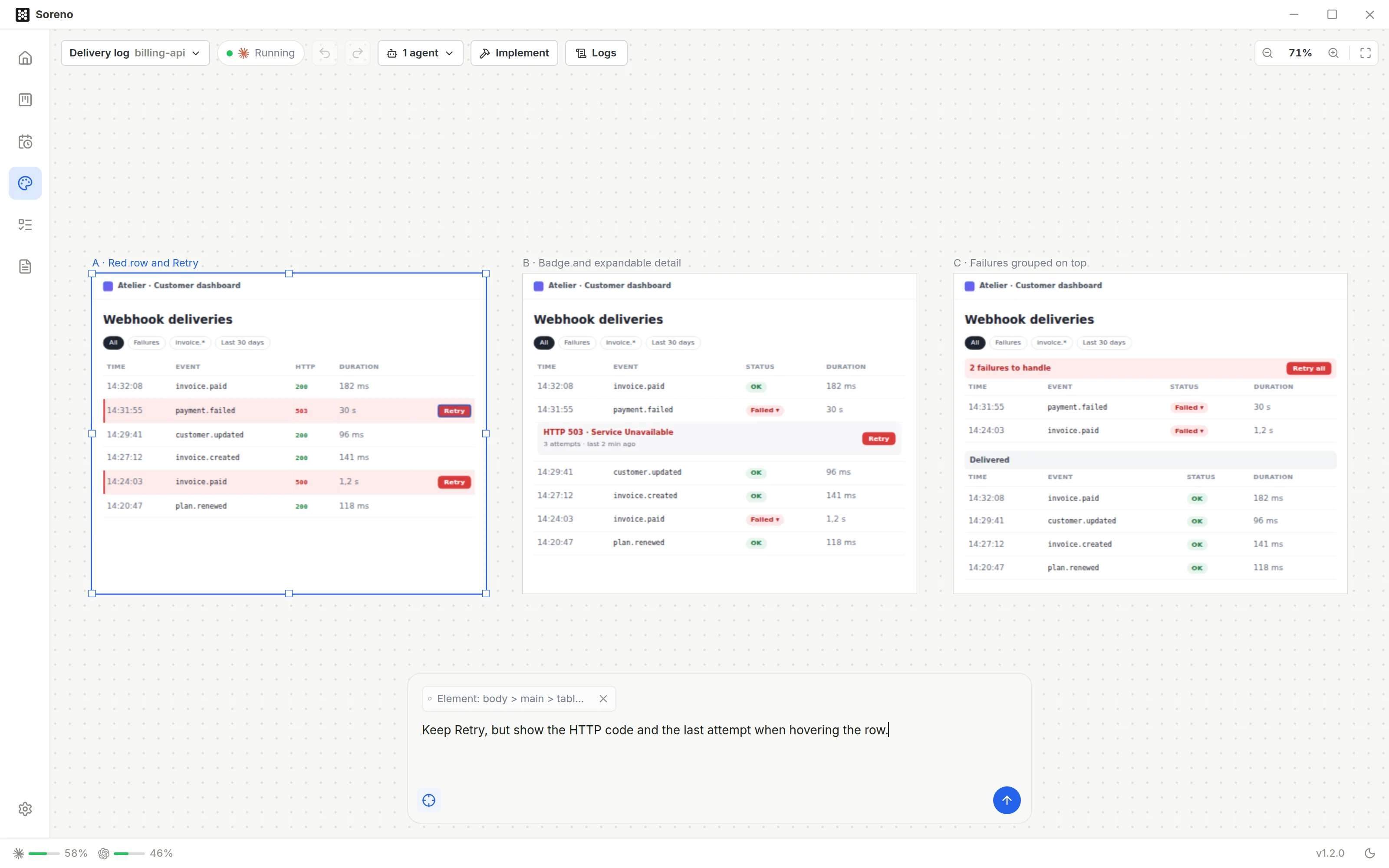
Ask for a screen or a change
Type in the prompt bar, at the bottom, then Enter; Shift+Enter adds a new line. The request goes to the agent with the target shown above the text: Whole board, the selected frame, or an element.
To aim at an element, turn on Target an element in a frame, or T, then click in a frame. The target’s cross, Target the whole board, goes back to the whole board. The agent gets the list of frames and, for a target, the HTML of the frame and of the element.
Like your remarks, the request waits until the agent can receive it: “Sent · read when the agent’s turn ends” shows meanwhile. A frame appears or changes as soon as the agent has written it.
Arrange the frames
- dragging a frame moves it; the arrow keys nudge it by one pixel, Shift+arrow by ten;
- the selected frame’s handles resize it;
- right-clicking a frame offers Duplicate and Delete;
- frames snap to the edges and centers of the others, with guides; Alt (Option on macOS) suspends snapping;
- Undo and Redo take back moves, resizes, duplicates and deletions.
To move around the board: the wheel or Space + drag pans the view, Ctrl+wheel (Cmd+wheel on macOS) or a pinch zooms. The buttons at the top right zoom in, zoom out and show everything. The board’s shortcuts are in Keyboard shortcuts.
Implement the design
Implement starts a coding agent on the Whole board or on the selected frame. Pick the project if the board has none, the agent, optional Instructions, and Work in a dedicated worktree, checked by default. Each frame is attached as an HTML file, with the instruction to reproduce the design with the project’s code, without copying those files. The session stays linked to the board.
Link a design to a session
In the Projects space, the palette icon of the session tabs, Link a design, opens the Design panel in place of the project tools: Create a design, or pick a board from the list, which Search boards filters. The linked board is sent to the agent if the session is running. A session follows one board.
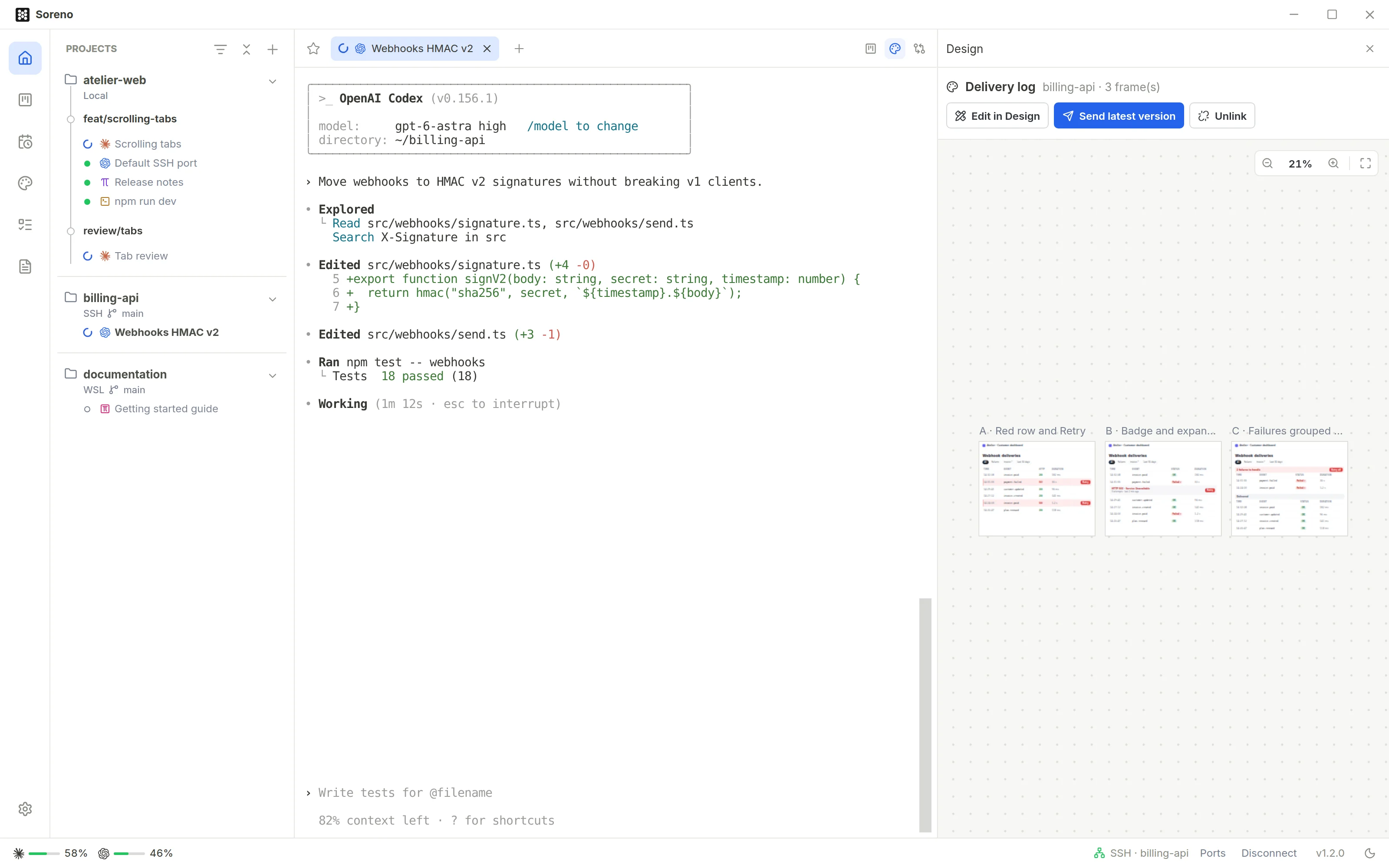
- Edit in Design: open the board;
- Send latest version: send the agent the board as it is now, after your changes;
- Unlink: detach the session from the board.
Linking or sending does not ask for an implementation: the agent acknowledges and waits for your request.
What frames can do
Frames are shown isolated: their HTML runs no script, and nothing external loads, no remote image, font or stylesheet. Only Soreno’s script for targeting an element runs in them. This isolation only covers the display: the agent drawing keeps the rights of its own configuration. Boards and their frames are stored in Soreno, never in your repositories.