 Soreno
Get started · Updated
Project groups and their overview
Bring the projects of one machine together in a group, start an agent working on all their repositories from its overview, then review and commit their changes in a single Git panel.
Why a group
A feature rarely touches a single repository: the API signs, the worker verifies, the portal documents. A group brings these projects together in the project column and adds an overview: one agent working on all the group’s repositories at once, and their changes gathered in a single Git panel.
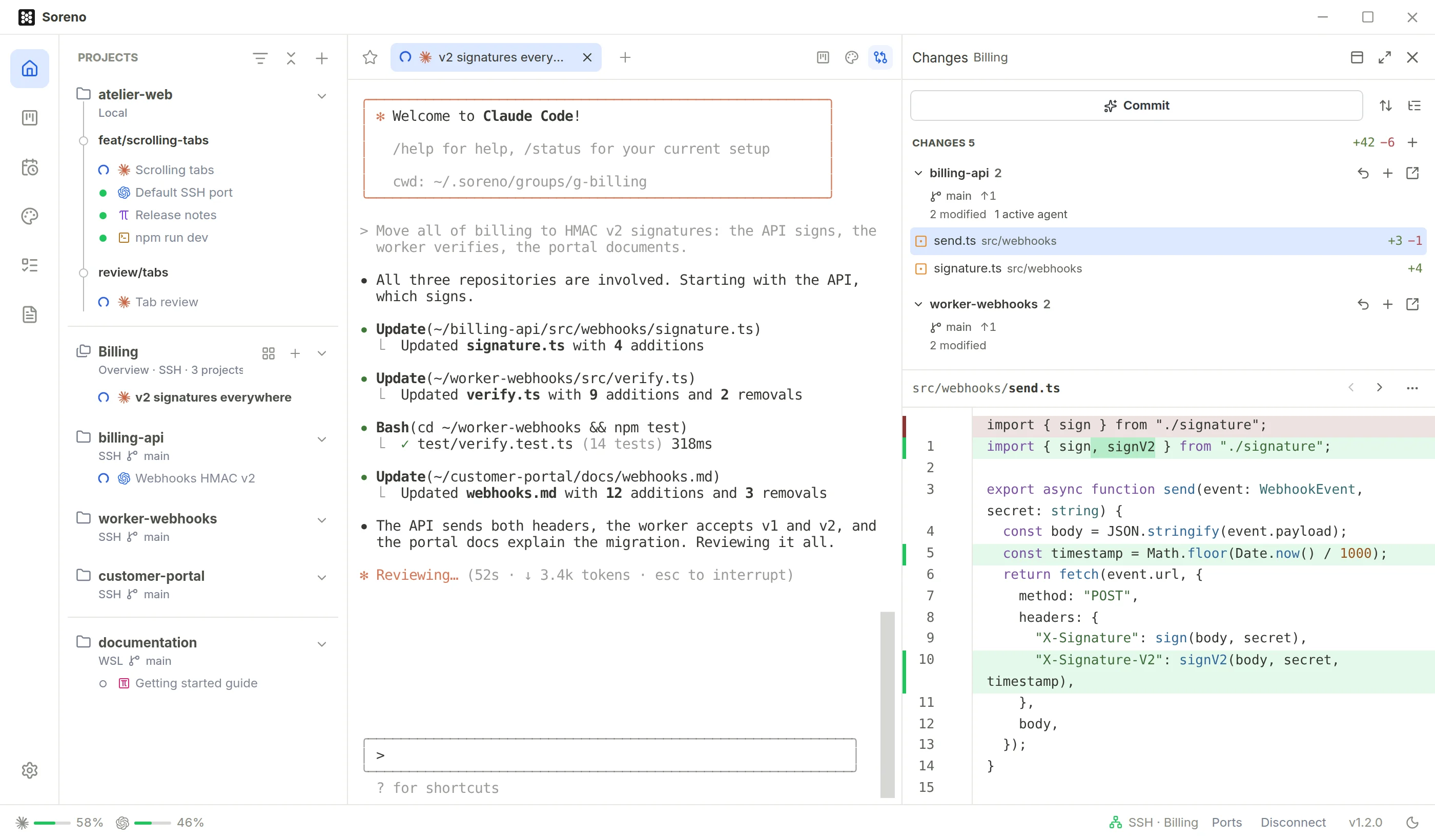
The repositories stay separate: each keeps its folder, its branch and its own sessions.
Create a group
The + at the top of the project column offers Create group. Enter a Group name, 100 characters at most, tick the Projects in this group, then Save.
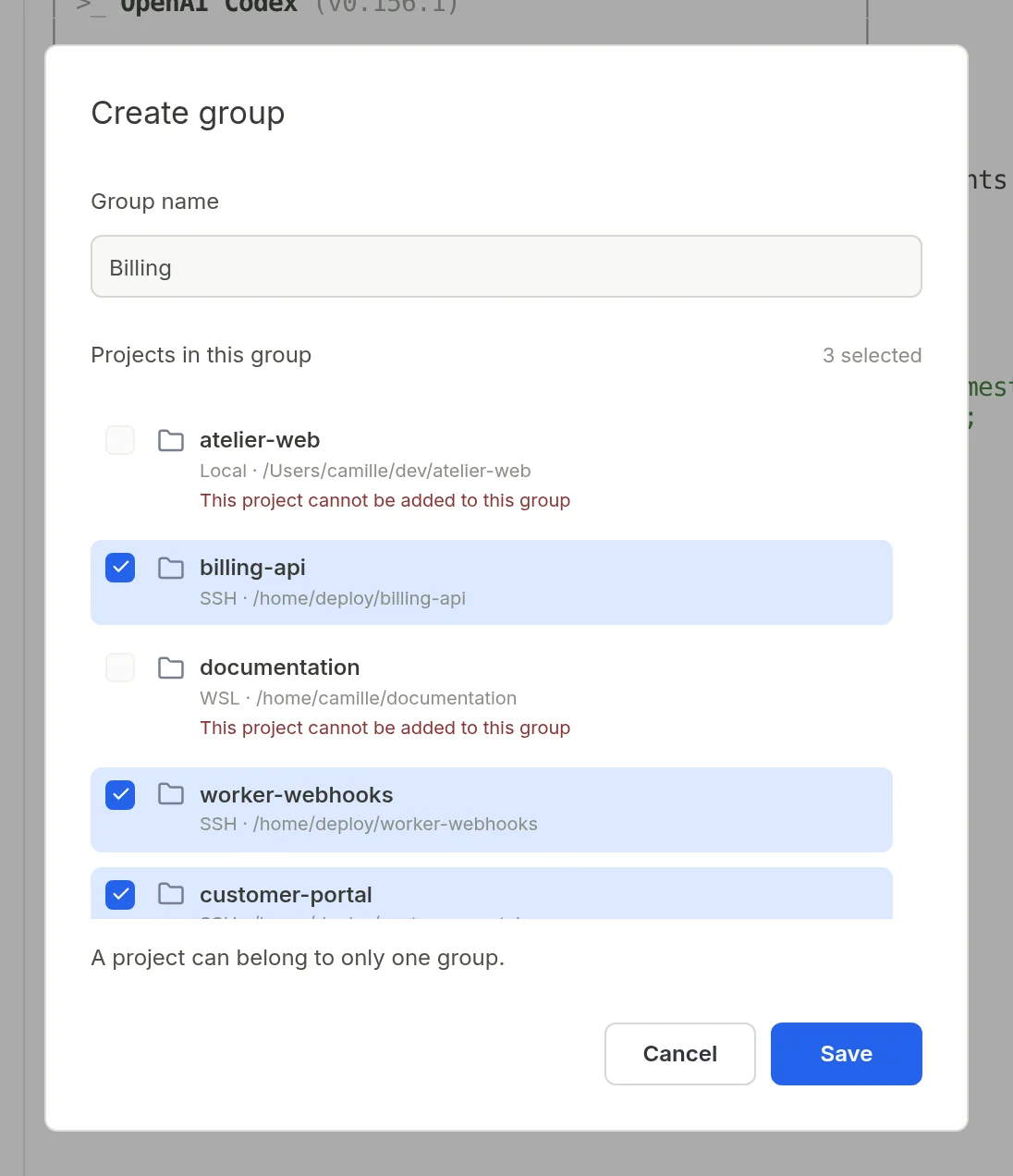
A group only brings together projects from the same machine: locally, in the same WSL distribution or on the same SSH server. The others stay greyed out, with “This project cannot be added to this group”. A project belongs to only one group: adding it to another group moves it there.
On an SSH server, the quickest way is to start from the explorer: while adding a project, tick Select multiple projects, then Create a group with the selected projects. The projects and their group are created in one go, when you click Save.
The group in the project column
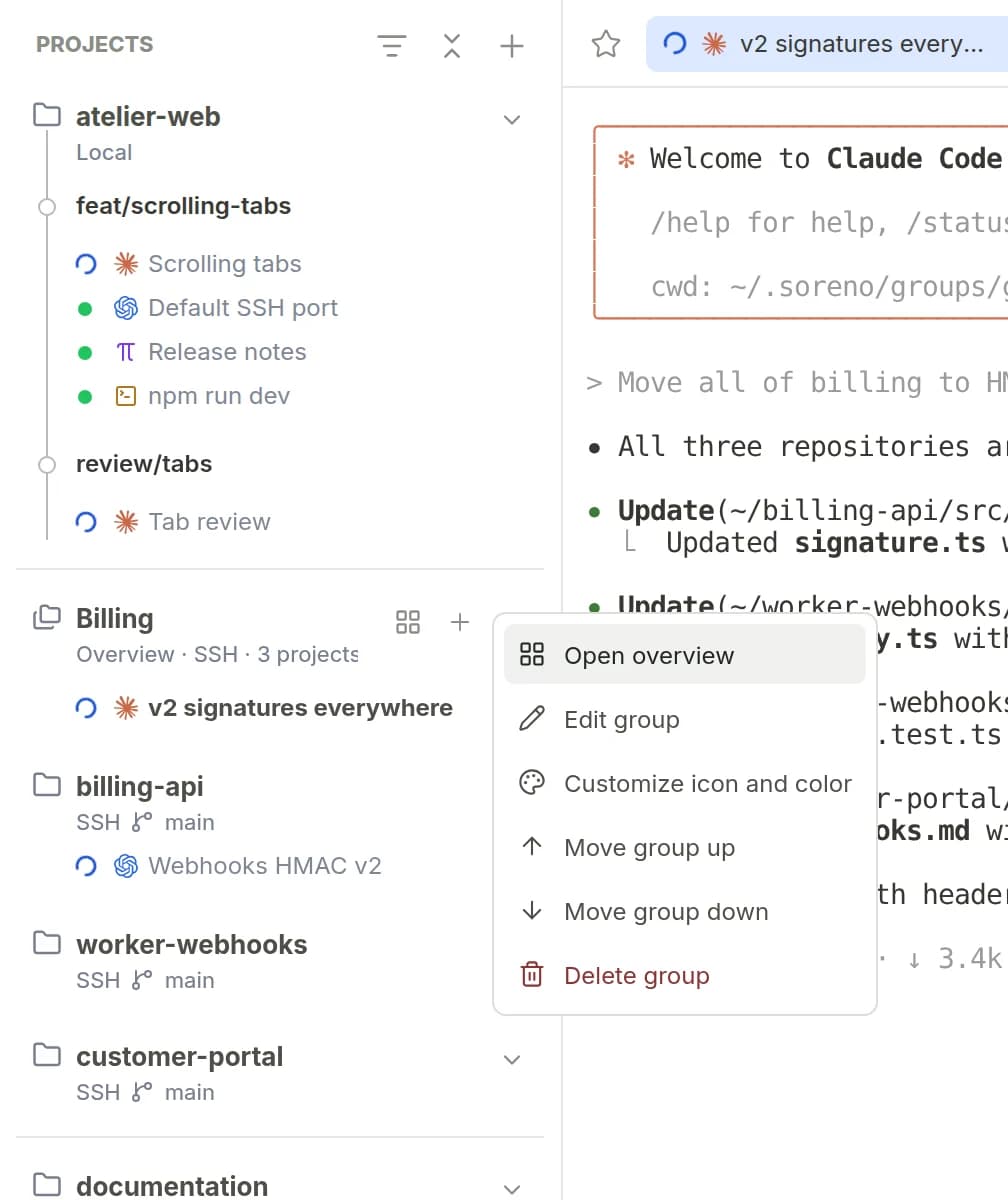
The group row shows its name, then Overview, the machine, the number of projects and, when agents are working, how many, those of the overview as well as those of the group’s projects. Clicking its name collapses or expands it; expanding a group always shows its overview sessions, even after Collapse all projects. Then come the group’s projects, each with its sessions.
The Open overview button, on the group row, opens it; the group’s context menu offers it too.
Start a group agent
The + on the group row offers the same agents as for a project: Pi, OMP, Codex, Claude Code, Chat (OMP) and Terminal. Opening the overview starts nothing: picking one is what starts the agent.
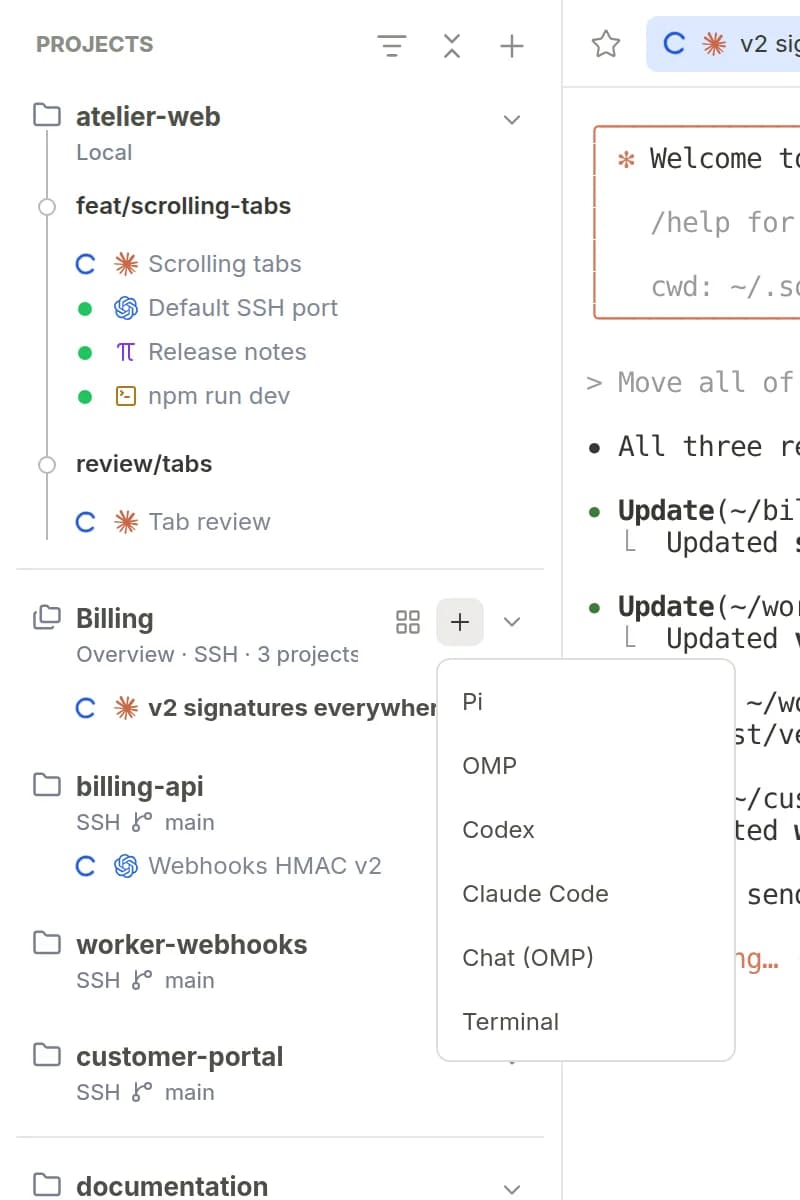
The agent starts in a folder of the group’s own, ~/.soreno/groups/ followed by the group’s identifier, which Soreno creates on the group’s machine: your home folder, the WSL distribution’s or the server’s. This folder starts empty: Soreno doesn’t copy the repositories into it, the agent works directly in their folders.
What the agent knows about the group depends on its CLI:
- Pi, OMP, Chat (OMP), Claude Code and Codex get the group’s name and the list of its projects, with their paths, in their instructions; OMP, Chat (OMP) and Claude Code also get access to their folders;
- Codex can also write to the projects’ folders, unless its configuration keeps it read-only;
- Terminal opens a shell in the group’s folder, nothing more.
The list of projects is passed at launch: an agent already running doesn’t see projects added to the group since. Otherwise, a group agent behaves like any other: over SSH, it carries on on the server when you close Soreno, and its notifications bear the group’s name.
From the overview, Ctrl+P and Ctrl+Shift+F (Cmd on macOS) search every connected project in the group; each result bears its project’s name.
The whole group’s changes
With the overview selected, the Git panel, Ctrl+Alt+B (Cmd+Option+B on macOS), lists the group’s repositories that have changes; a repository without changes isn’t listed. Each repository shows its branch, how far ahead or behind it is since the last fetch, its files and the number of agents working in that project. Expand a repository to see its files, click a file to show its diff; the repository’s open button opens its project.
Stage, unstage or discard changes file by file or repository by repository; the + in the Changes header, Stage all, stages the changes of every repository. Before discarding, Soreno backs the files up in a Git stash.
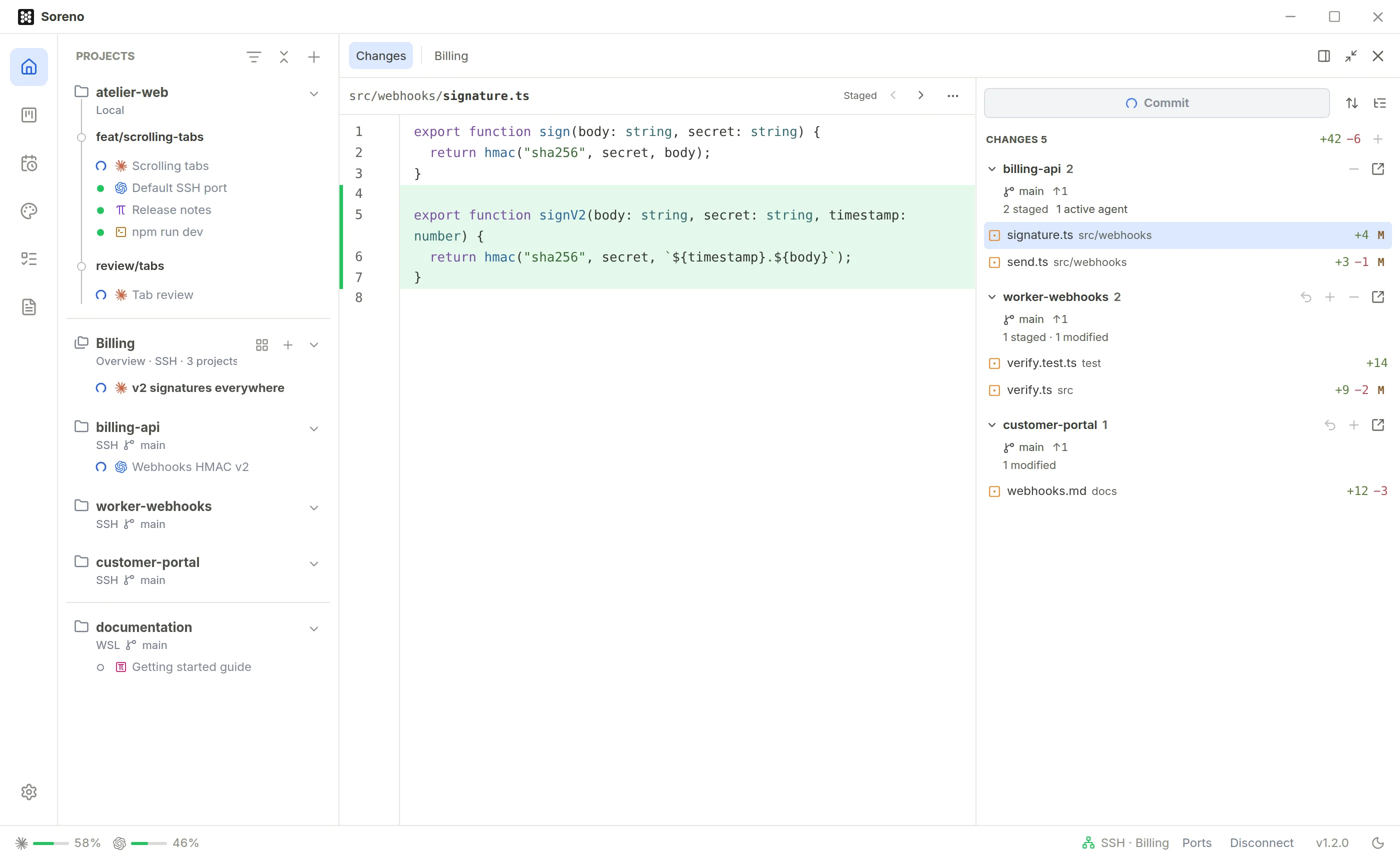
Commit, with its ✦ icon, runs the auto commit of each repository with changes: it stages all its changes, has Codex write a message for that repository, then creates the commit. Repositories go one after the other; if one fails, the others are still committed, and a notification names the failing repository, with a button to open it. Codex must be installed, as for a project’s auto commit.
Push, Pull, Fetch, history and branches stay in each project’s Git panel.
The panel refreshes when you come back to Soreno, when an agent finishes its turn and after each of your actions.
The diff takes line comments, as in a project’s Git panel. The Agent list offers the agents running in the file’s repository and those of the overview.
The group’s services
In a group, the Services button and its panel gather the services of all its SSH projects, sorted by project, each with its own Start all. They’re available from any of the group’s projects, one of its worktrees or the overview, and the panel stays open or closed for the whole group. The Local, WSL and SSH page explains how to describe a project’s services.
Organize and delete
Right-click a project: Move to “group name” or Remove from group. The project and its repository are kept. You can also drag a project from one group to another.
Right-click a group’s header: Edit group changes its name and projects, Customize icon and color its look, Move group up or down its place in the column. Its header can be dragged too.
A project in a group can’t change machine: remove it from the group first.
Delete group asks for confirmation. The overview’s sessions and their conversations are deleted; the group’s projects are kept, unless you tick Also remove its N projects from Soreno, unchecked by default: they then leave Soreno with their launchers and sessions, but their folders and files stay on disk, and worktrees outside the group stay in Soreno. Soreno also deletes the group’s folder if it’s empty; otherwise, it keeps it and says so: “The group folder is not empty and was kept”.
What the overview doesn’t do
- a Kanban issue that targets the overview starts its agent there without a worktree;
- an issue requested by an overview agent comes without a project, unless its session is already linked to a project’s issue;
- a disconnected SSH project leaves the group’s panel, and the overview starts no agent while its connection is down.