 Soreno
Notes · Updated
Encrypt a note with a passphrase
Encrypt a note and its images with a passphrase, lock it, unlock it, remove the encryption, and what to do if you forget the passphrase.
What encryption protects
An encrypted note is saved encrypted on your disk, with its images: without the passphrase, its content can’t be read. Its title, taken from the first line, stays visible in the list: put nothing secret there.
A single passphrase protects all your encrypted notes, in every vault. Soreno never keeps it: it only keeps a key the passphrase protects.
Encrypt a note
Open the note from the Notes view, the document icon in the activity bar on the left, then click Encrypt, the padlock in the note’s toolbar.
- The first time, Create a passphrase asks for one, at least 8 characters, to confirm, then Create and encrypt encrypts the note. Keep it somewhere safe: if you forget it, your encrypted notes can never be read again;
- if your encrypted notes are locked, Soreno first asks for the passphrase to unlock them;
- otherwise, the note is encrypted right away.
The note’s images are encrypted with it, and so are the ones you add later. Soreno then rewrites the vault database so that no older unencrypted version of the note lingers there.
Lock and unlock
An encrypted, unlocked note reads and edits like any other. Its toolbar then shows Lock and Remove encryption.
Lock saves your edits, then locks every encrypted note: their content leaves memory. A locked note keeps its title in the list; instead of its content, Soreno shows “This note is encrypted. Enter your passphrase to show it.” Unlock, after the passphrase, opens every encrypted note again.
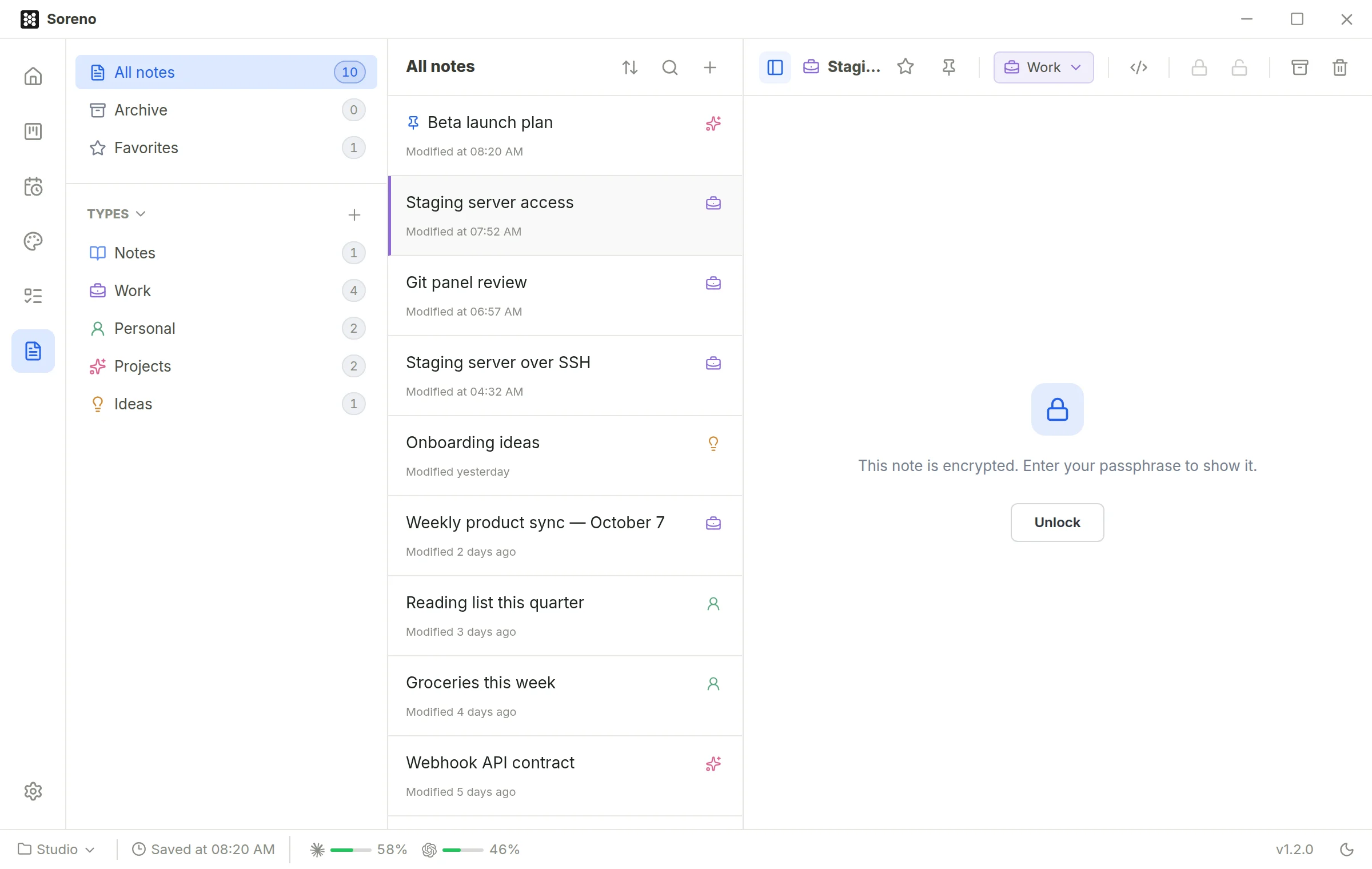
Encrypted notes are also locked when Soreno starts, and on their own after a while without keyboard or mouse activity. Set it in Settings, Notes section, Encrypted notes group: Automatic lock offers 1, 5, 10, 15, 30 or 60 minutes, 10 by default.
Remove encryption
On an unlocked note, Remove encryption, the open padlock, asks for confirmation: the note and its images will be stored unencrypted on this disk again.
Change or reset the passphrase
Settings, Notes section, Encrypted notes group, Passphrase setting: Change asks for the current passphrase, then the new one, twice. Your encrypted notes stay readable: only the passphrase protecting them changes. Until a note has been encrypted, the setting reads “Encrypt a note to set your passphrase.”
Forgot the passphrase? Nothing can recover it or read the notes it protects. Forgot it? Reset, then Delete and reset, permanently deletes every encrypted note and its images, in every vault; other notes are kept. The next note you encrypt will set a new passphrase.