 Soreno
Settings · Updated
Icons, colors and theme
Give your projects, groups and note types an icon and a color, show colored file icons and pick the light or dark theme.
Customize a project or a group
In the project column, right-click a project or a group’s header, then pick Customize icon and color. A panel opens next to it:
- Color: eight hues, Blue, Purple, Green, Pink, Amber, Teal, Terracotta and Gray;
- Icon: 154 icons, with Search icons… to filter the grid;
- Custom image: Import image… takes a PNG, JPEG, WebP or GIF file up to 5 MB, resized automatically;
- Reset goes back to the default look.
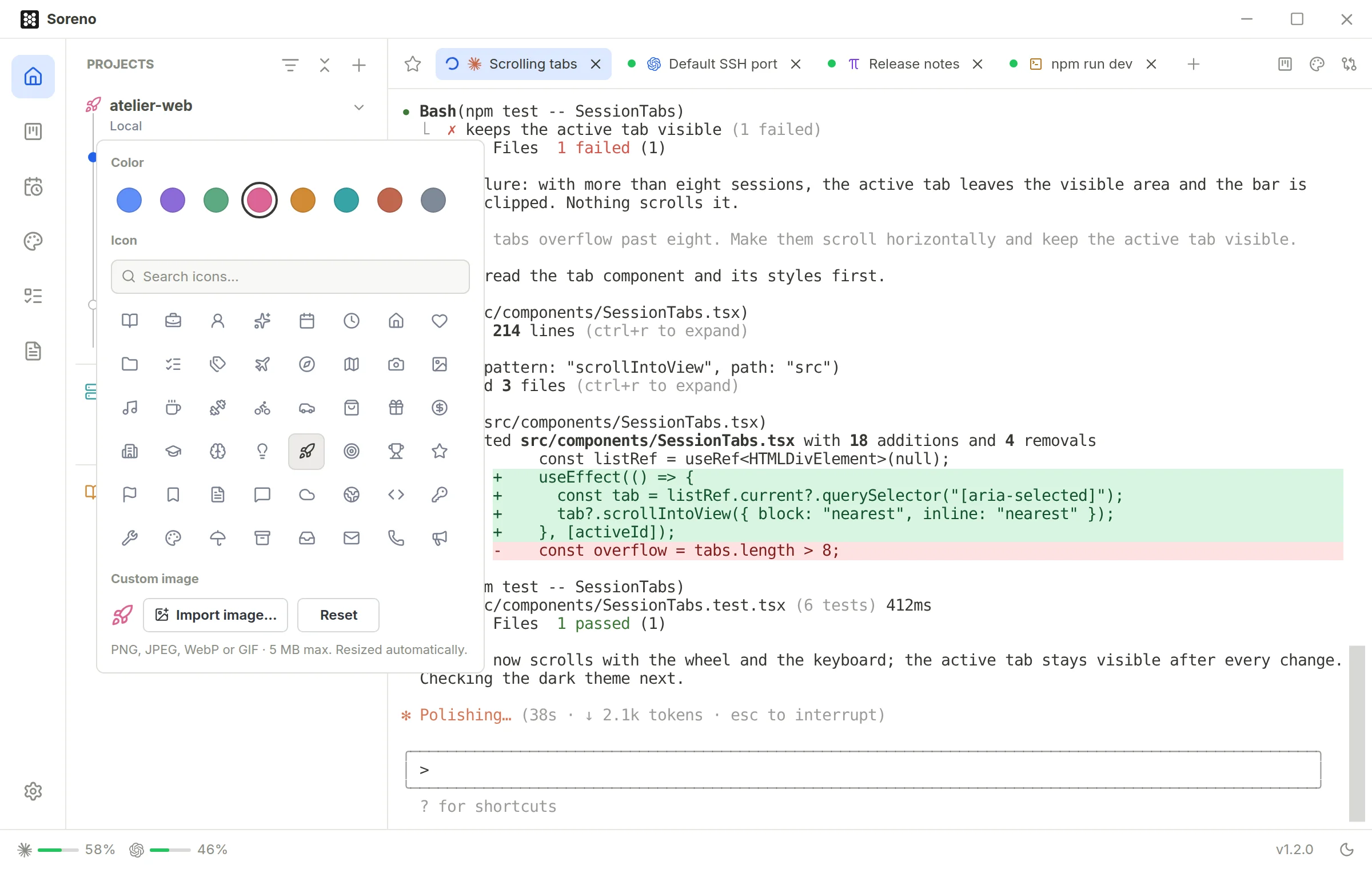
Every choice applies right away, with nothing to confirm; Esc or a click elsewhere closes the panel. Search matches each icon’s name, in French for now, such as Lancement or Serveur, and its English identifier, such as rocket or server. An imported image is scaled down to 64 pixels square: an animated GIF no longer moves.
The icon and color show in the project column, on the Kanban’s cards and project lists, and in Automations. Session tabs keep their agent’s icon. A worktree takes its project’s look when you create it; after that, you change it separately.
The look is saved on this computer, with your projects: it doesn’t go into the repository and isn’t shared with your team.
Customize a note type
In the Notes view, the Types section of the left column sorts your notes by type, each with its own icon and color. The section’s + creates a New type, ready to rename. Right-click a type:
- Edit display name, 40 characters at most, no duplicates;
- Customize icon and color, with the same colors and icons as projects, but no imported image;
- Delete, not possible while the type still holds notes, or if it’s the last one.
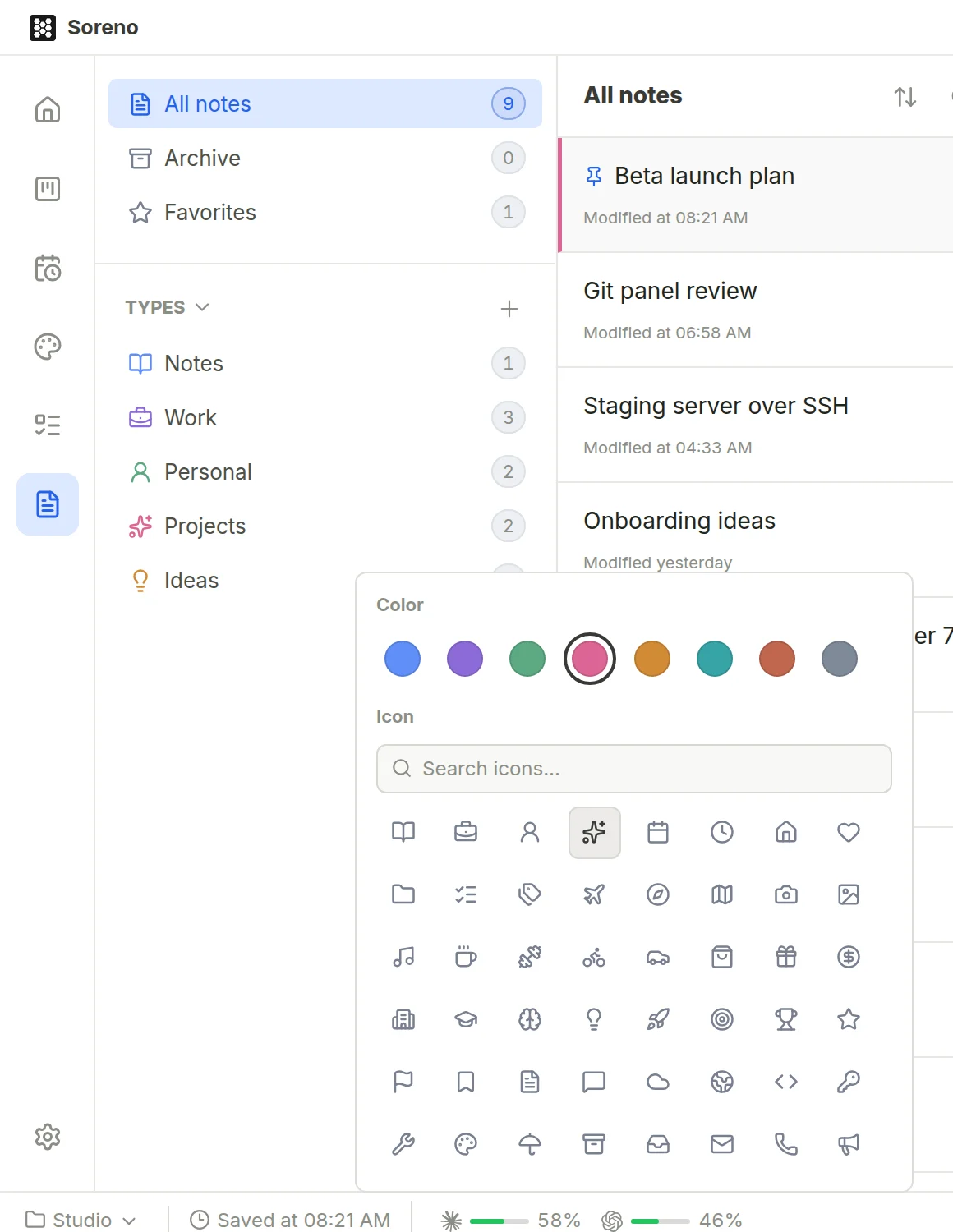
Drag a type to change its place in the list. Its icon and color show in the note list, before the open note’s title and in its type picker. Types belong to the vault: each vault has its own.
Light or dark theme
Settings, General section, Theme group:
- Theme: Automatic follows your system setting, Light and Dark force one;
- Terminal theme: Match interface, Light or Dark, for agent and service terminals.
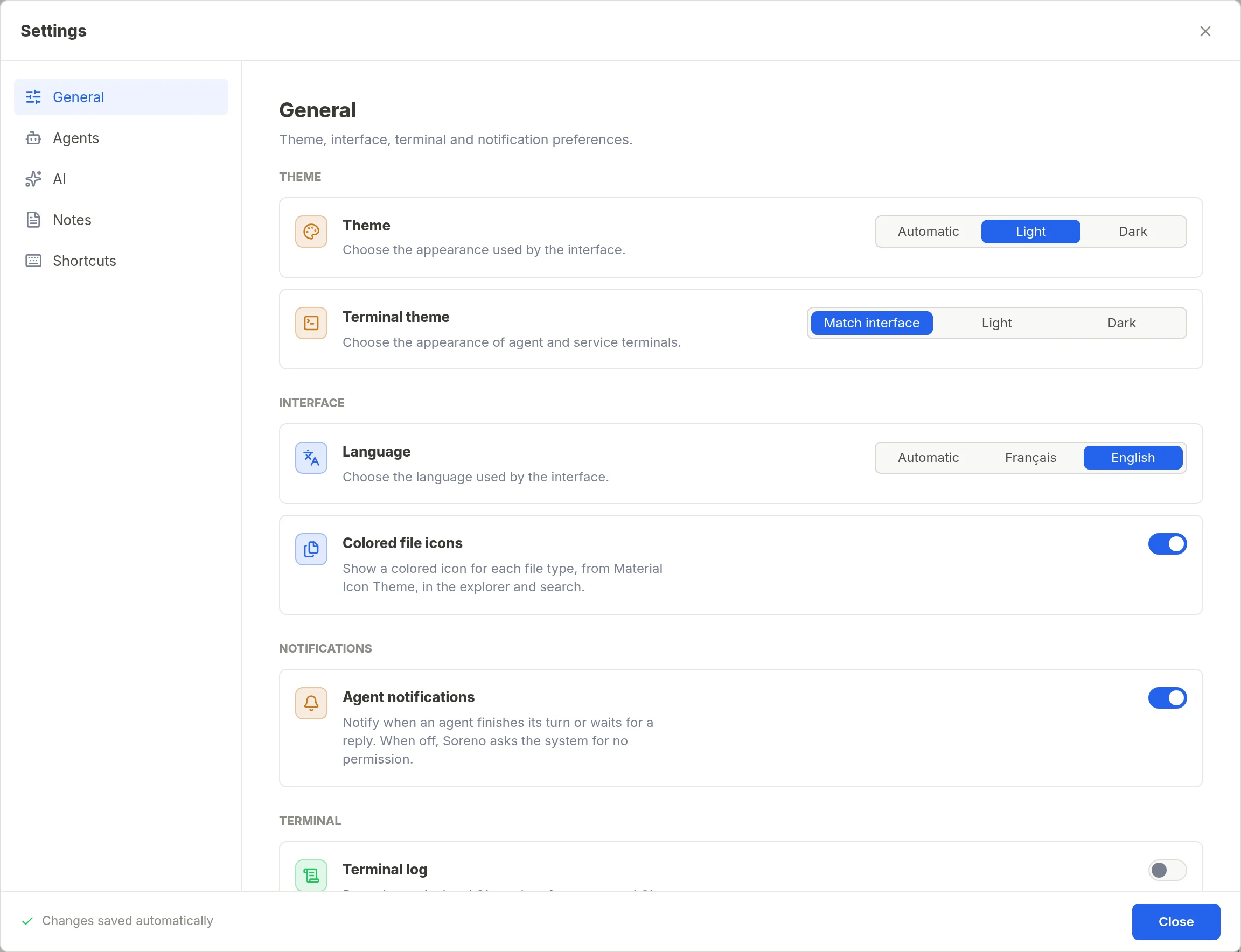
The moon or sun button, at the bottom right of the status bar, switches straight to the dark or light theme; the theme then stops following the system.
Colored file icons
In the same section, Colored file icons shows an icon specific to each file type, from Material Icon Theme. Off by default, it applies to the Files view’s explorer, project search, quick open, Ctrl+P (Cmd+P on macOS), and Chat (OMP) file suggestions. The Git panel’s lists keep their status icons.